¶ Bidirectional Printing
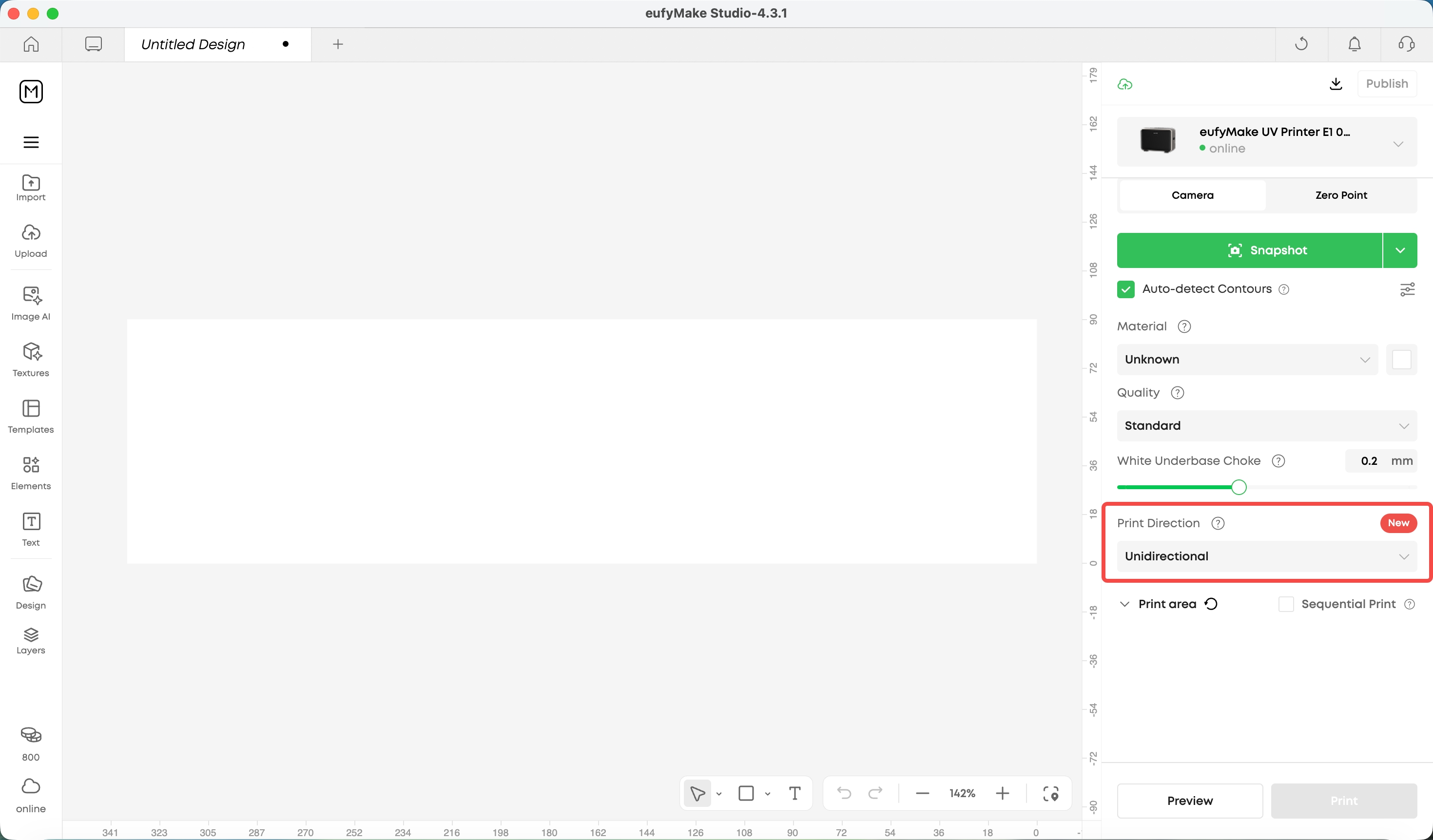
Faster printing: Reduce print time by roughly 40% to 75% compared to unidirectional printing — ideal for high-volume, long-duration, or time-sensitive jobs such as large-format pieces.
Unidirectional printing laid ink on only one pass and returned empty, wasting half the travel time.
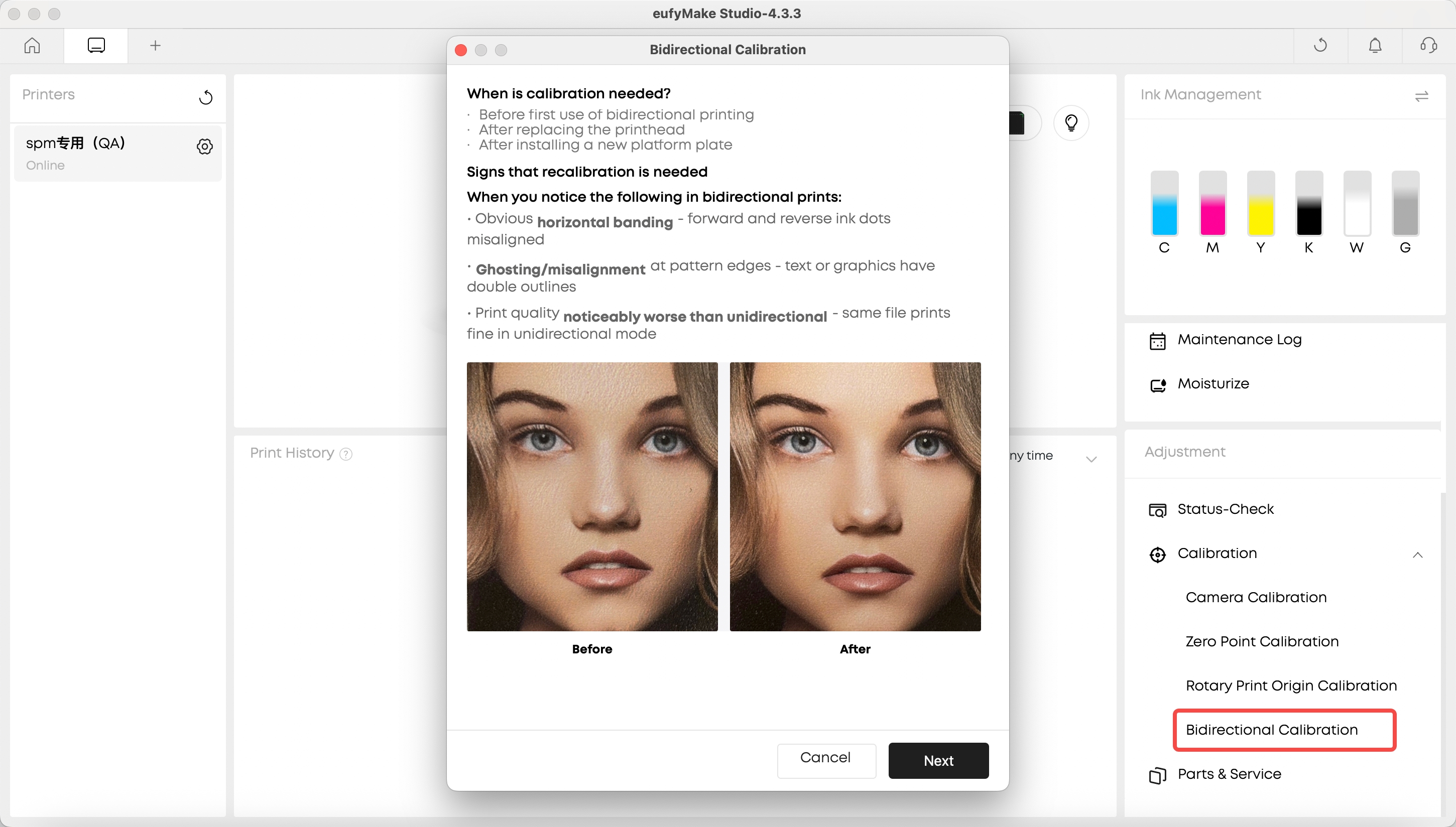
Bidirectional mode now lays down ink in both directions, improving print efficiency. A one-time Bidirectional Calibration is required before first use, available from the print settings panel and Device page, with recalibration anytime.
Please note: only flatbed printing mode is supported — Rotary, Roll-to-film , and Flexible White Ink scenarios are not yet available. Previously, printing was unidirectional primarily to ensure print quality; this bidirectional mode improves print speed through algorithm optimization on the existing structure. Even among industrial-grade printers today, bidirectional printing is still rare.
¶ Continue Printing with Expired Ink
Expired ink printing unlocked: Keep using expired ink after confirming the risk; replace within 14 days and your Care benefits remain unaffected.
Once ink expired, the device entered an abnormal state and blocked printing entirely.
You can now confirm the risk in the dialog to keep printing. After first confirmation, the device enters an "expired ink alert" state and a 14-day observation period begins — replace all ink within 14 days and your Care benefits remain unaffected; if not replaced in time, the system reminds you every 30 days.
Please note: expired ink may clog the print head and lower print quality; after 14 days risks increase and may affect your Care benefits. Expired ink is currently only supported for printing — Other functions (manual maintenance, printing test, ink injection, calibration, remaining amount display of expired ink, etc.) are still being verified internally and stability is improved. Replacing ink is still recommended.
¶ Flexible White Ink Reminder Upgrade
Decide for yourself: Even in Flexible White Ink scenarios, you can choose to keep printing with standard white ink.
Using standard white ink in Flexible White Ink scenarios triggered a blocking dialog, leaving no choice.
On App, the dialog now includes a "Continue Printing" button, with an option to snooze reminders for 3 months. On PC, the previous dialog is now a persistent reminder in the design workspace — it no longer blocks printing, includes a link to the replacement guide, and can be dismissed for the current session.
Please note: interaction differs by platform (App dialog vs. PC persistent reminder). Following the replacement guide is recommended for best results.
¶ Performance Improvements
More stable: Smoother large file transfers, texture rendering, and zoom/pan, with faster loading.
Large files transferred slowly, rendered textures slowly, and lagged when zooming or panning.
Home page loads faster, and large file transfers, texture rendering, and zoom/pan operations are smoother — a better experience when importing large or high-precision models and complex designs.
¶ Try the New Version Now
Open eufyMake Studio, go to Settings to check for updates, or visit your app store to upgrade
eufymake.com/studio
eufymake.com/app
Experience v4.3