¶ Font Tool
¶ Applicable Scenarios
When you need to add text content to your design, the Text Font Tool allows you to:
-
Add headline text or paragraph text
-
Quickly create styled text using preset templates
-
Customize font attributes (font type, size, color, border, etc.)
-
Adjust text effects (bold, italic, underline, transparency, etc.)
-
Apply advanced styles (Outline, Transform effects)
¶ Operating Steps
¶ 1. Open the Text Font Tool
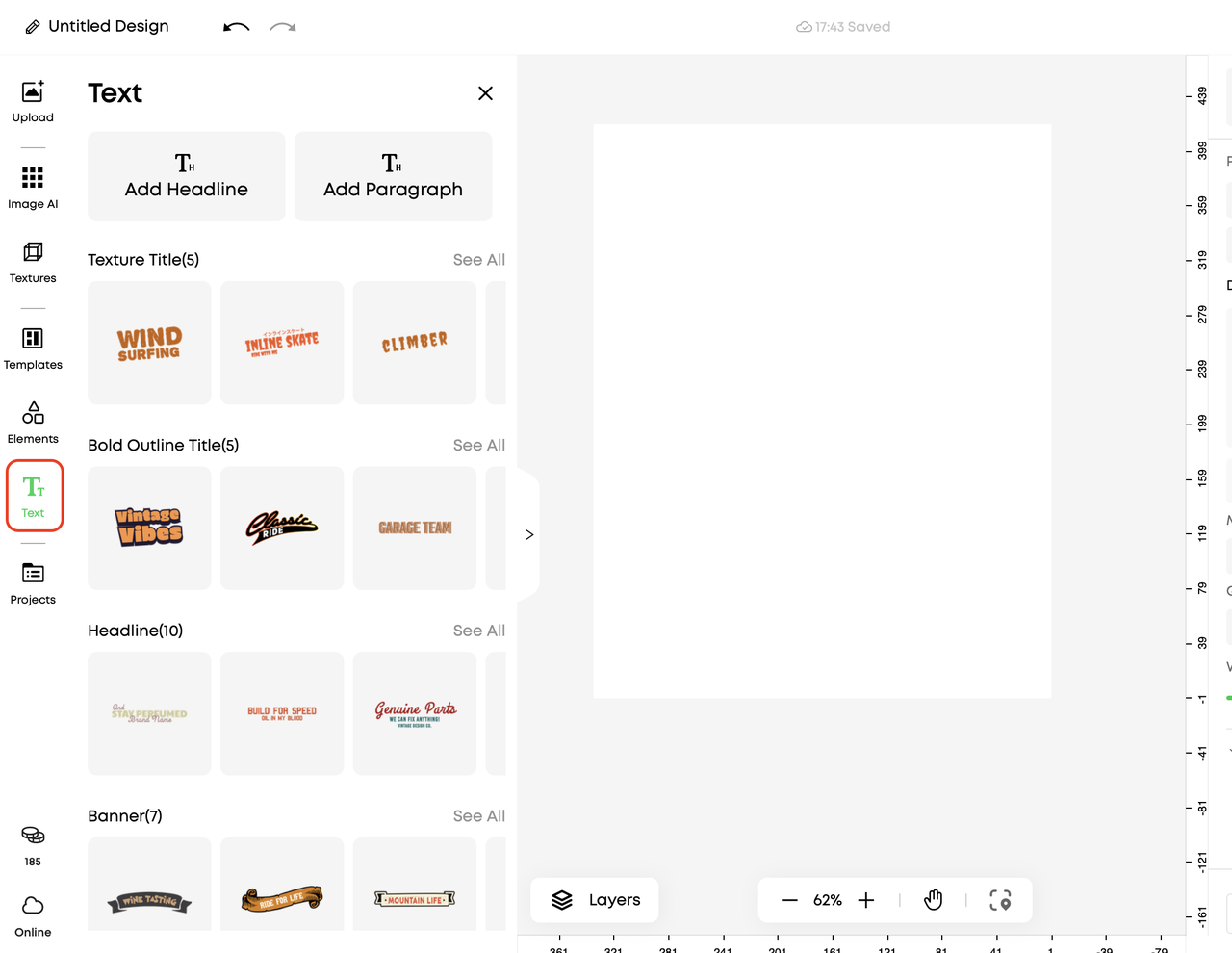
Click in the left panel [Text] to open the font tool.
¶ 2. Add text
You can add text in two ways:
Method 1: Direct Addition
-
Click [Headline] to add headline text
-
Click [Paragraph] to add paragraph text
Method 2: Use a Template
-
Browse text templates at the bottom of the interface
-
Click a template to automatically add it to the design
-
Double-click the text to edit the content
¶ 3. Select and edit text
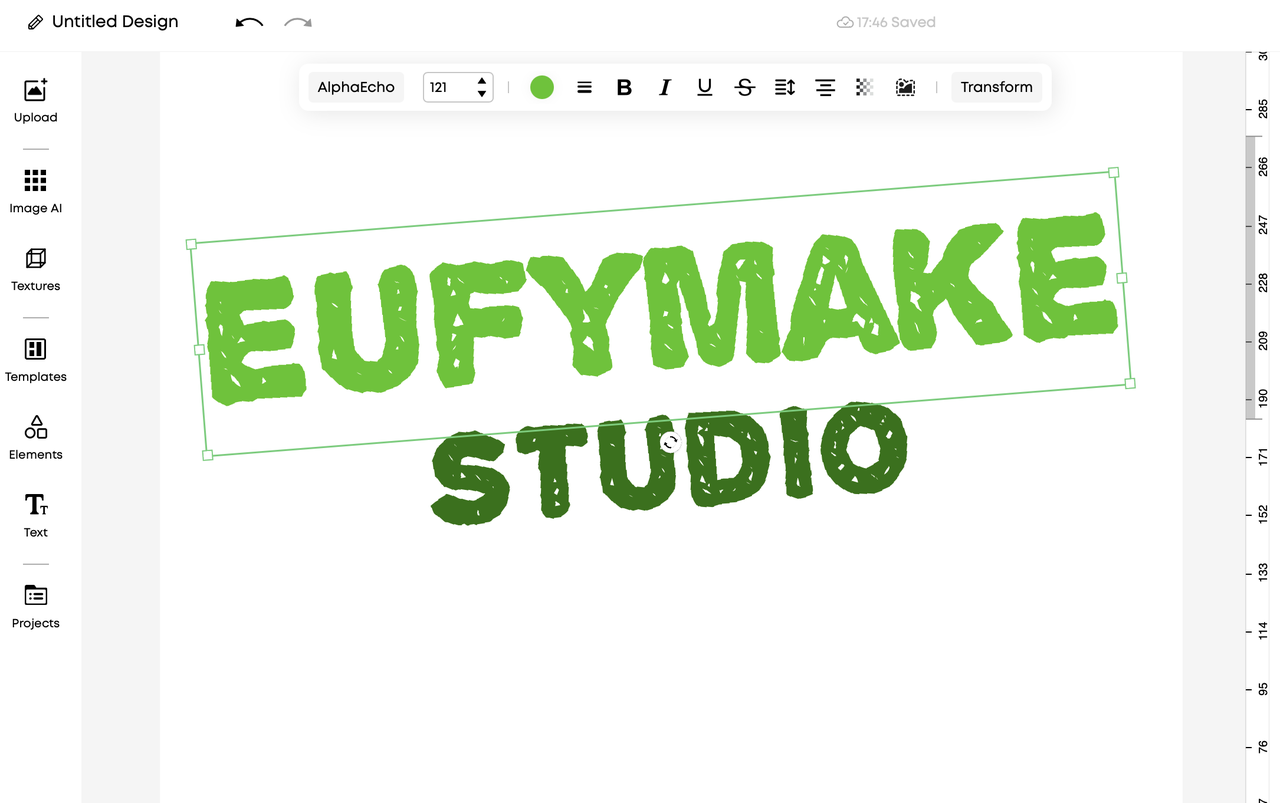
Click to select the text you added, and the top toolbar will display all editing options.
¶ Parameter Description
After selecting the text, the following parameters can be adjusted in the top toolbar:
¶ Basic Style
| Parameter | Instructions | Suggestion |
|---|---|---|
| Font Selection | Select text font | Select appropriate fonts based on the design style |
| Font Size Selection | Adjust text size | Title font size is recommended to be ≥24pt, and body text font size is recommended to be 10-14pt |
| Color Selection | Set text color | Ensure sufficient contrast between the color and the background |
| Border | Set text border (thickness and color) | Used for special styles or to highlight text |
¶ Format Effect
| Parameter | Instructions |
|---|---|
| Bold | Increase font weight |
| Italic | Italicize the text |
| Underline | Add an underline below the text |
| Strikethrough | Add a strikethrough in the middle of the text |
| Line Height and Kerning | Adjust the spacing between lines |
| Alignment | Left Align/Center/Right Align |
| Transparency | Adjust text transparency (0-100%) |
¶ Advanced Effects
| Parameter | Instructions | Reference Document |
|---|---|---|
| Outline | Add a stroke effect to the text | outline |
| Transform (Deformation) | After clicking, select a preset text deformation style. Can be used for creative text effects | / |
¶ Precautions
¶ Tips
-
Font Usage: Use no more than three different fonts in a single design to maintain visual consistency
-
Color Contrast: Ensure strong contrast between text and background to maintain readability
-
Transparency: Text transparency below 30% may result in unclear print output
-
Border Thickness: Excessively thick borders can reduce readability; recommended maximum is 5px
¶ Common Misconceptions
-
Not Recommended: Light-colored text on a light background due to low contrast
-
Recommended:
- Dark text on a light background
- Light text on a dark background