¶ Outline
¶ Applicable Scenarios
When you need to add eye-catching border effects to design elements, you can use the Outline function. This feature is suitable for the following scenarios:
-
Sticker design: Add white or colored borders to sticker patterns to enhance visual impact
-
Text design: Add outlines to text to improve readability or create a stronger design effect
-
Graphic design: Add contour lines to vector graphics or bitmaps to highlight key elements
-
Multi-level designs: Create visual hierarchy by using outlines in different colors or thicknesses
Tip: The Outline feature automatically recognizes the edges of elements and generates a separate Outline layer, allowing independent adjustment without affecting the original element.
¶ Operating Steps
¶ Select the Element to Outline
-
Click the element on the canvas that you want to outline (bitmap, vector image, or text is supported)
-
Confirm the element is selected by checking that the selection box appears around it.
¶ Apply the Outline Function
-
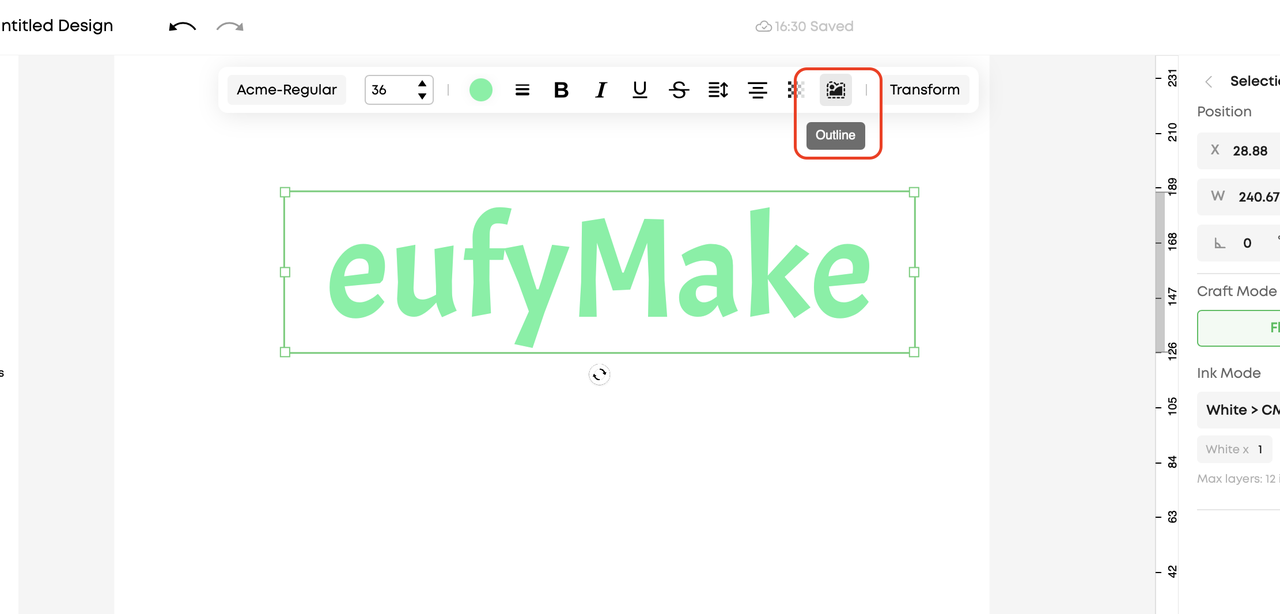
Click Outline in the top toolbar.
-
The system will automatically detect the element edges and generate a new Outline layer.
Tip: The Outline layer appears as a separate layer in the layer list, making subsequent adjustments easier.
¶ Adjust the Outline effect
-
Select the newly created Outline layer.
-
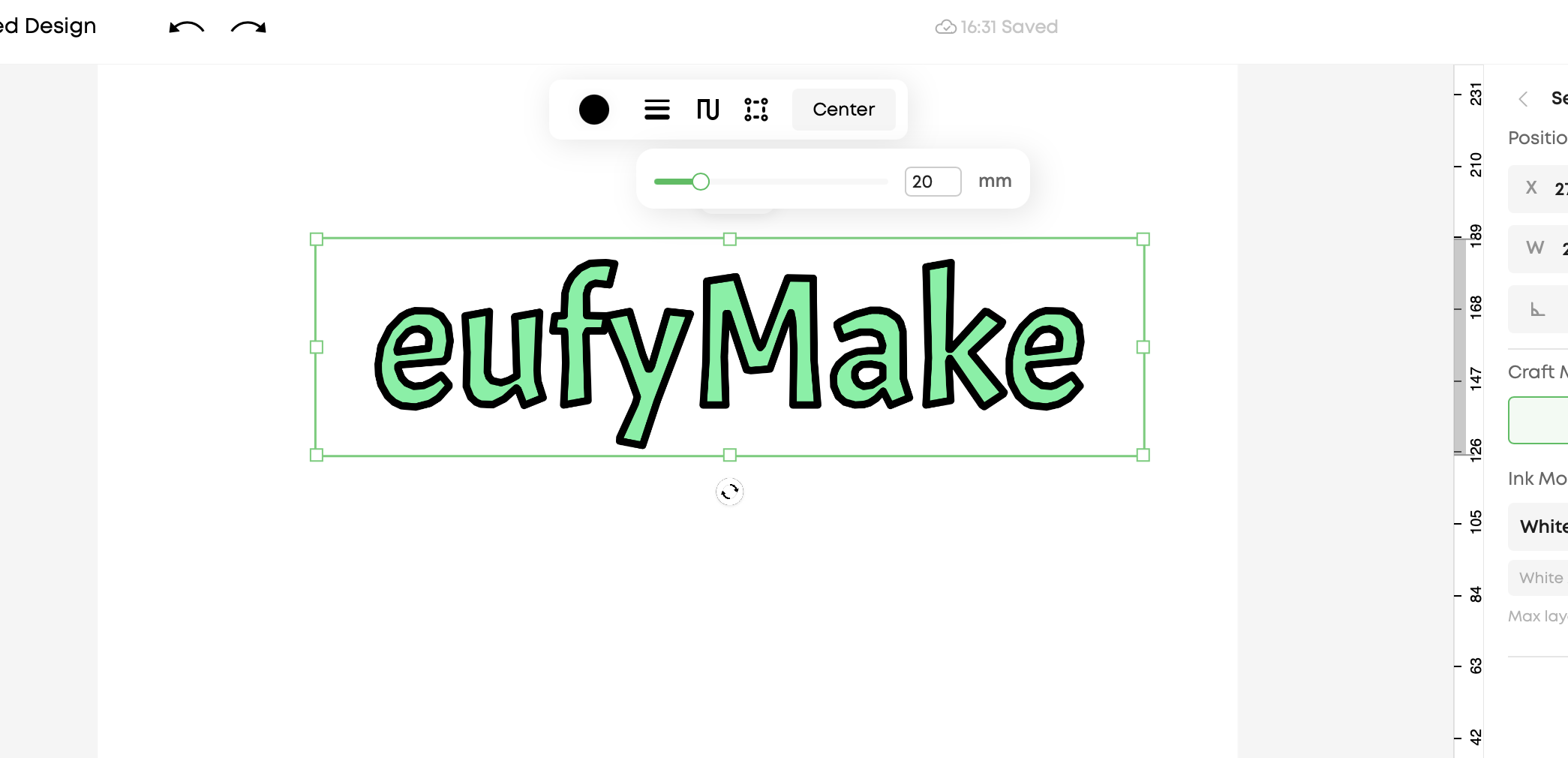
The following parameters can be adjusted in the top toolbar:
- Color: Set the outline color
- Thickness: Adjust the outline width
- Smoothness: Controls how smooth the outline edges appear
- Density: Adjusts the contraction degree of the outline
- Outline Mode: Select Center or Outside
¶ Parameter Usage Tips
-
If you do not want the outline to overlap the original element, select Outside mode.
-
For small-sized elements, it is recommended to use a thinner outline (1–2) to avoid excessive visual impact.
-
Multiple outlines can be applied to the same element to create layered outline effects.
¶ Precautions
-
The outline layer is independent, and deleting it will not affect the original element.
-
If the original element is deleted or repositioned, the Outline layer will not automatically update and must be regenerated.
-
Complex graphics may require a longer processing time.