¶ Failure Phenomenon
During the printing process, ink droplets fall onto the printing area or other parts of the machine.
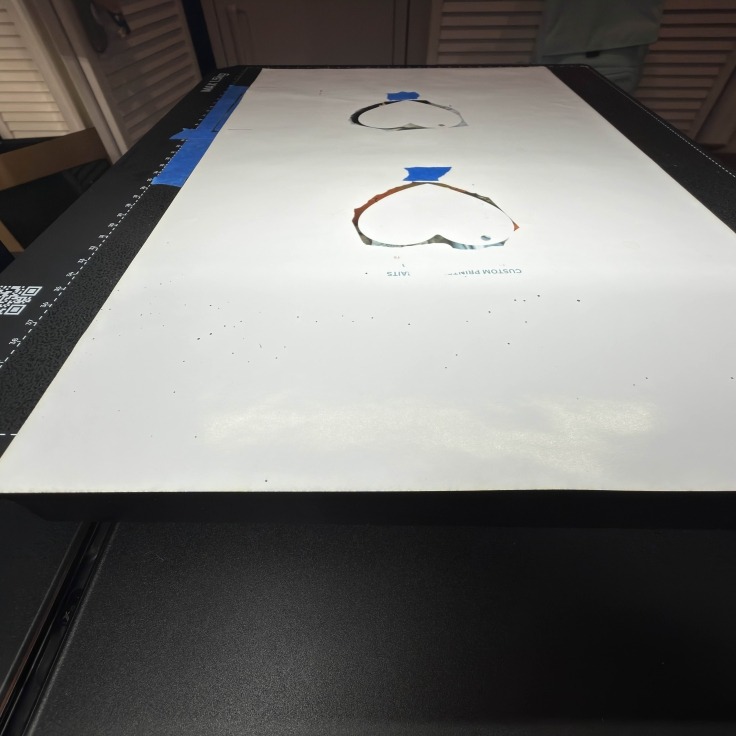
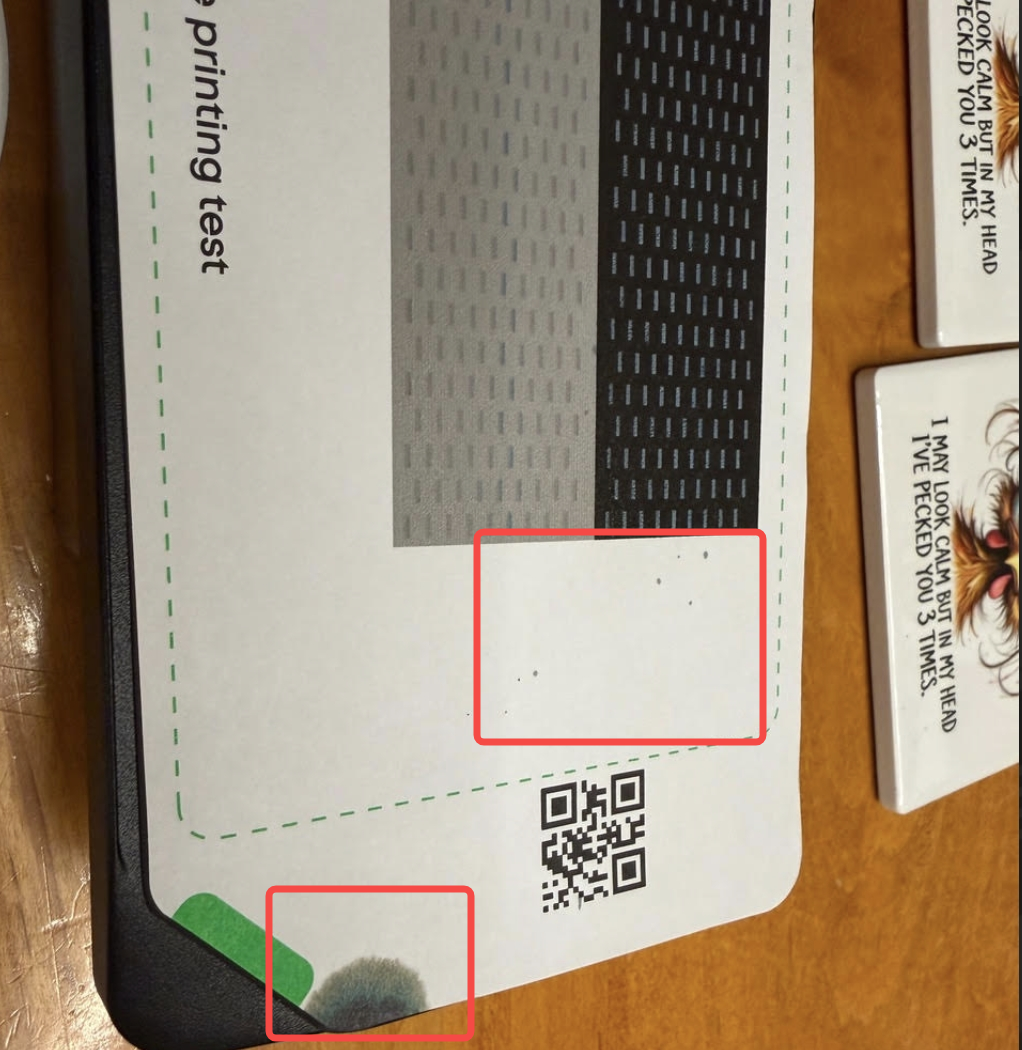
¶ Cause Analysis
- The wiper (scraper) has aged and can no longer completely remove ink from the printhead surface.
- The printer has not been maintained for an extended period, and ink residue near the ink stack (capping station) has not been cleaned.
- The scraper is not installed correctly and cannot operate normally.
- Hardware malfunction: the scraper does not extend and operate properly.
¶ Troubleshooting Steps
On the device interface, go to Component Lifespan → Scraper Set and check whether maintenance is required.
- If the scraper has been used for more than three months, replace the ink stack scraper with a new one.
- Clean the area around the printer ink pad according to the daily maintenance guide,Manually-Cleaning
- Refer to the scraper installation guide to confirm that the scraper is installed correctly. Printhead-replacement
- Refer to the figure below, execute the Print Test Chart command, and check whether the printer scraper extends normally during operation.
- If ink dripping still occurs, remove the printhead and check whether there are any ink droplets or contamination on the printhead nozzle surface.
¶ Support Contact
¶ If the issue persists after completing the above steps, please contact eufyMake Customer Support at support@eufymake.com with the following information:
- Your Order Information.
- Printer SN. Please refer to: Check-sn
- Printer and App Logs. Please refer to:Upload Log
- Troubleshooting results from steps 1–5
- Relevant photos and videos.