¶ Ink loss Print Resume
During the printing process, if the device detects a low ink level or a missing ink cartridge, the print job will be automatically paused to prevent print failure or degraded print quality.
After replacing the ink cartridge, users do not need to restart the print task. Printing can be resumed directly from the Device Page in eufyMake Studio or the eufyMake App to continue the current job.
¶ How to resume printing ( After an ink interruption)
After resolving the cartridge issue, resume printing as follows:
- Replace or reinstall the ink cartridge of the corresponding color, ensuring that the cartridge is inserted correctly and securely.
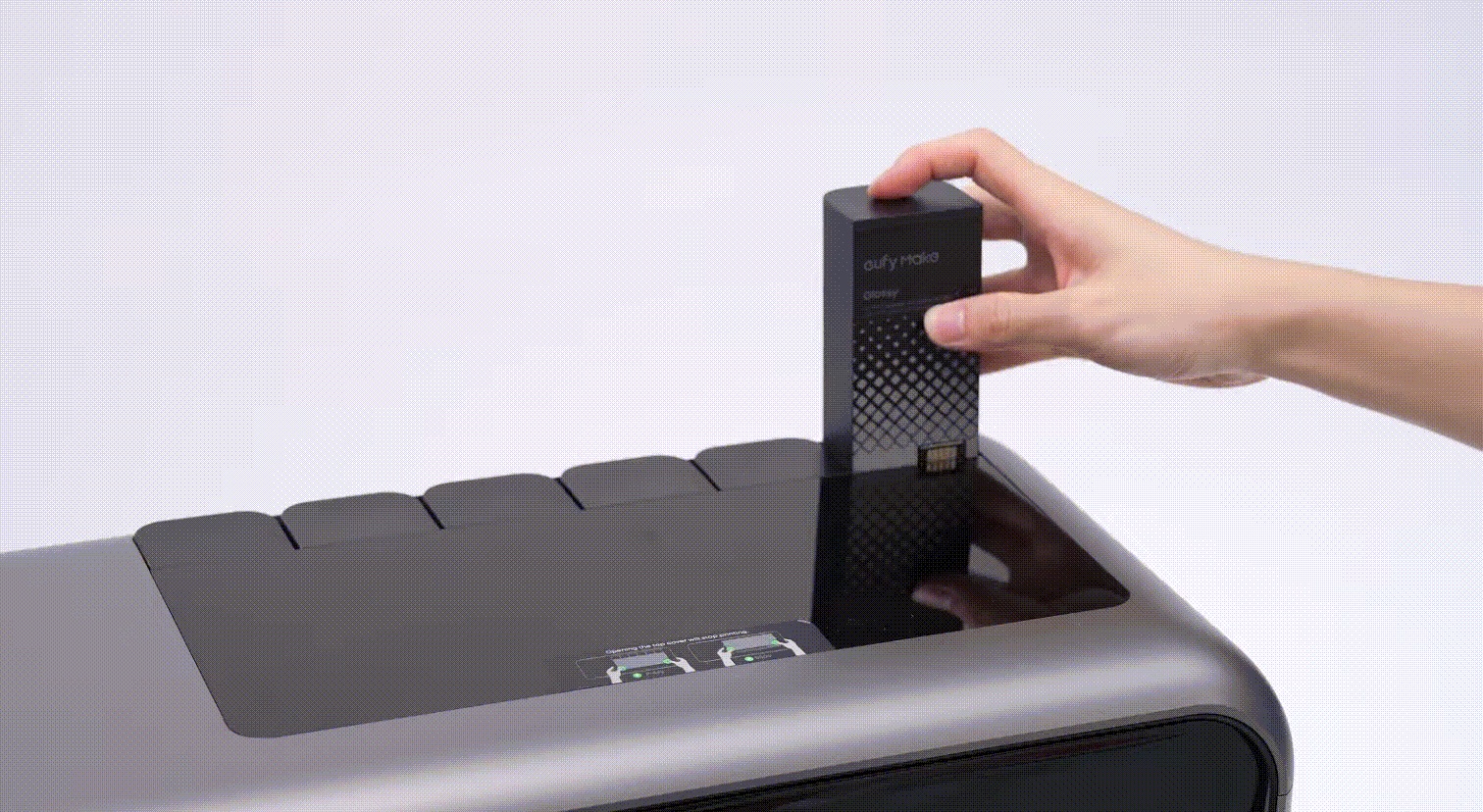
-
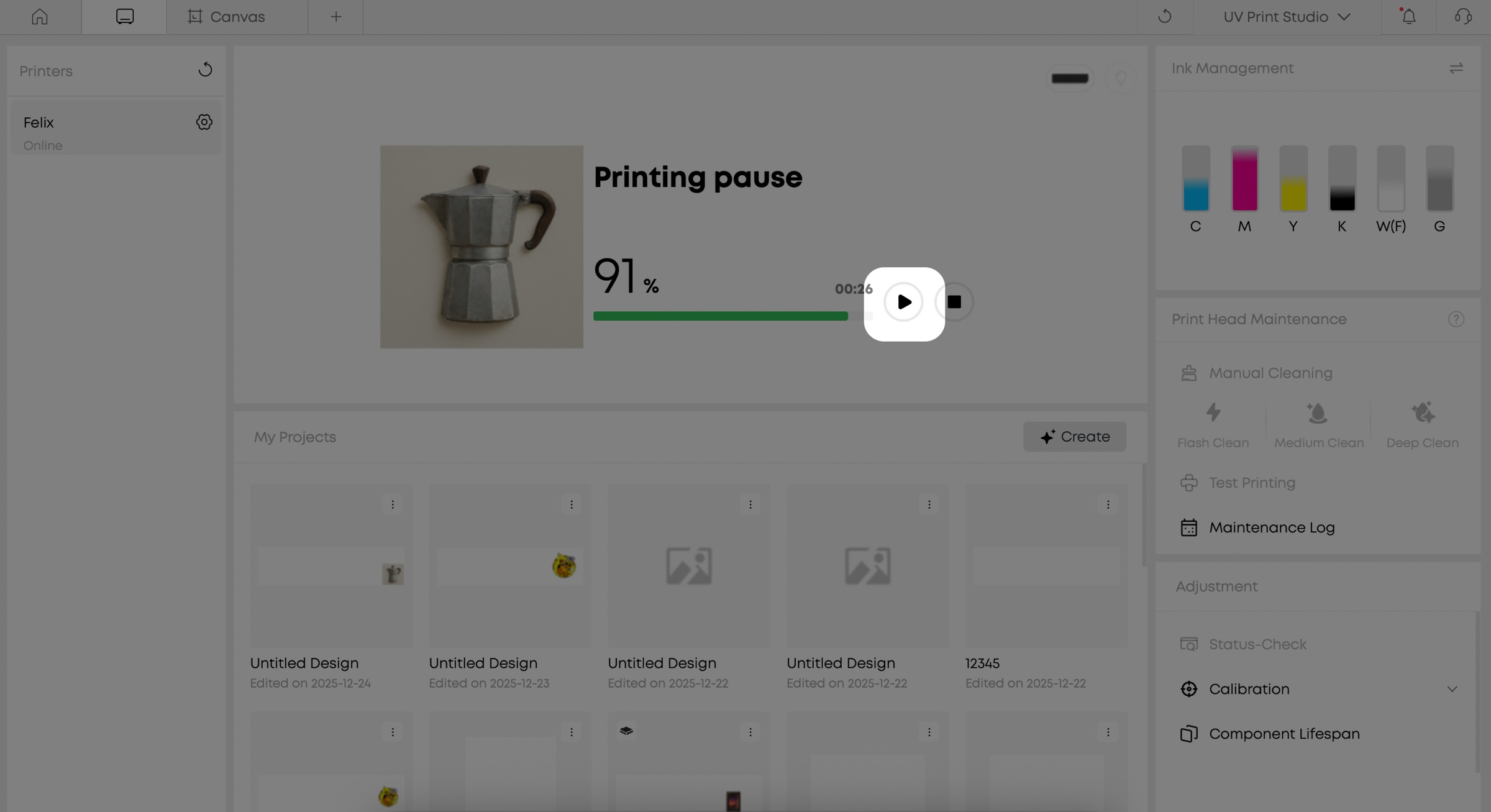
Open the software, enter the Device Page, and confirm that the cartridge status is displayed normally.
-
Click the “Continue Printing / Resume Printing” button. The print job will resume from the paused position without requiring the file to be re-uploaded or the task to be recreated.
If printing cannot be resumed after replacing the ink cartridge and completing ink injection, try reinserting the cartridge, refreshing the Device Page status, or restarting the device. After restarting, return to the Device Page and attempt to resume printing again.
¶ Frequently Asked Questions (FAQ)
Q: Do I need to restart the entire print job?
A: No. As long as the current task has not been canceled, the system will continue the job after the ink cartridge is replaced and printing is resumed.
Q: Can I pause and resume printing multiple times?
A: Yes. As long as the print job has not been manually canceled, the system supports multiple pauses and resumptions.