¶ User Guide for Offline Use
¶ Overview
The printer and design software each include a special mode for use in environments without an internet connection:
-
Printer AP Mode: Turns your printer into a Wi-Fi hotspot. Your computer can connect directly to the printer’s Wi-Fi signal, enabling device control and file transfers without requiring an external network.
-
Editor Offline Mode: When your computer is offline, the editor can switch to this mode automatically or manually. In Offline Mode, you can continue to design and save your projects as local files.
In short: First, use AP Mode to connect your computer to the printer. Then, use Offline Mode on your computer to create your designs.
¶ Features & Operation
¶ How to Enable AP Mode
¶ First-Time Setup (In Software)
-
Open Printer Settings in the software.
-
Toggle the switch for AP Mode.
-
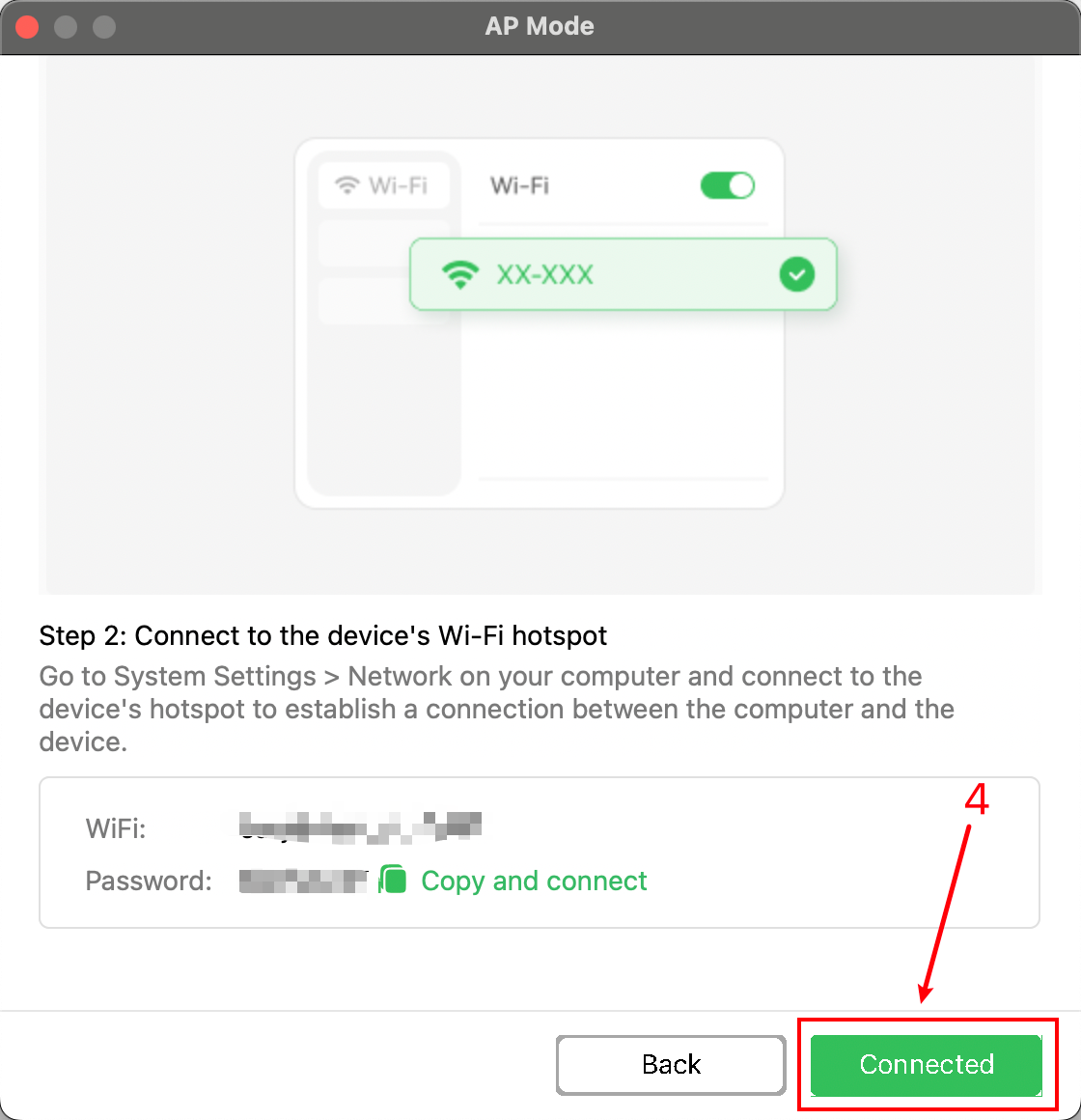
Follow the on-screen instructions to find and connect to the printer's Wi-Fi in your computer's Wi-Fi settings.
-
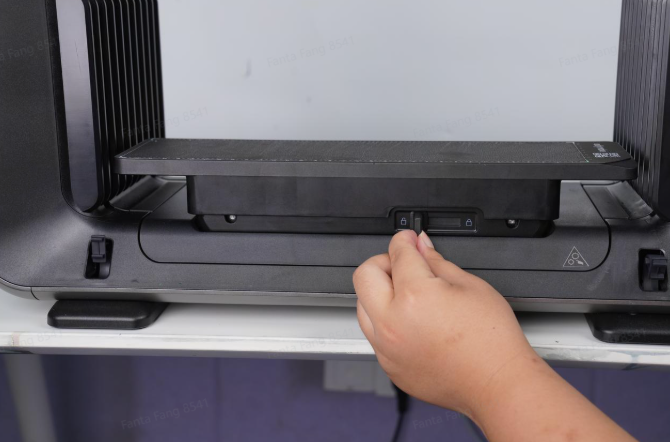
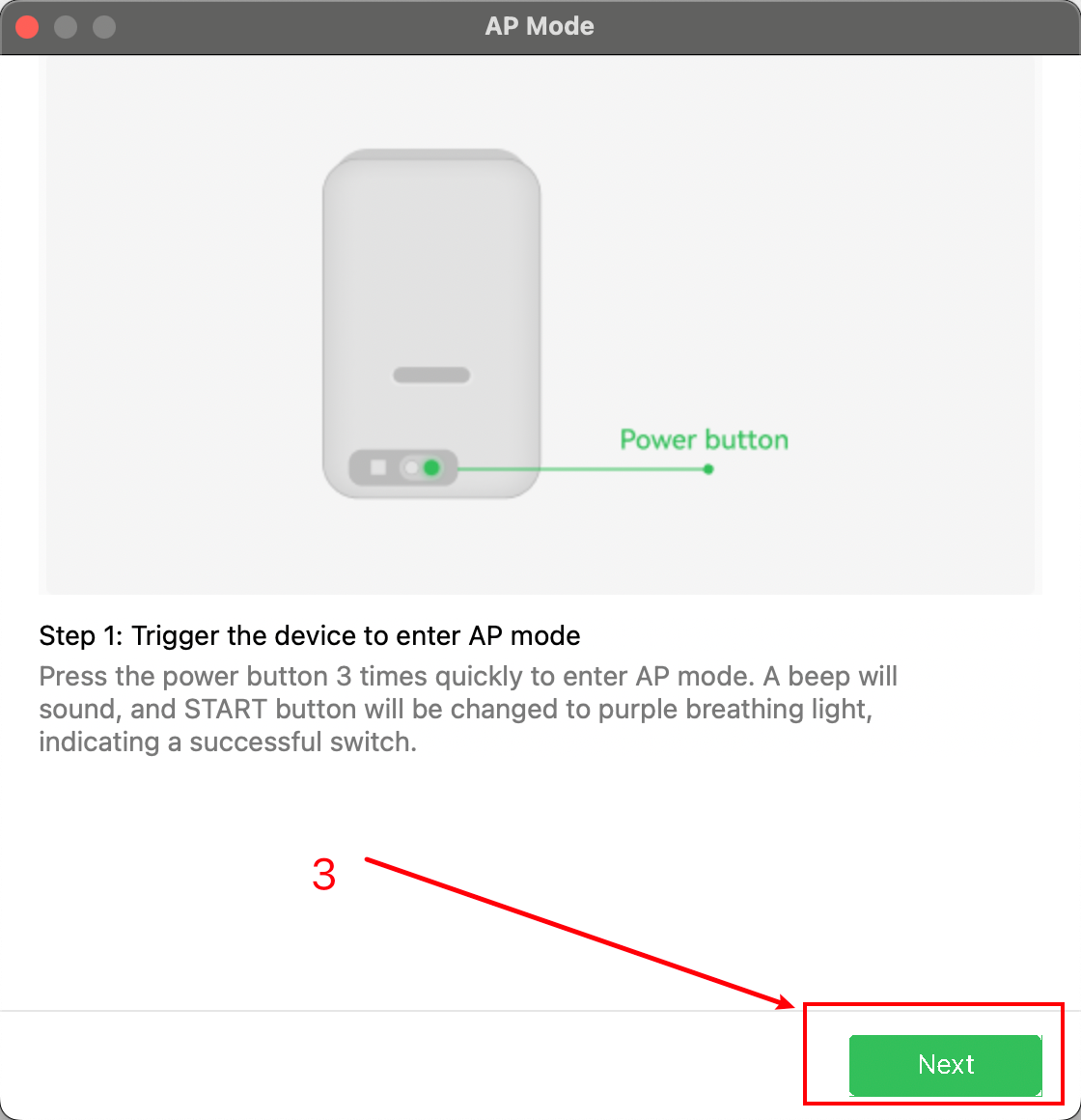
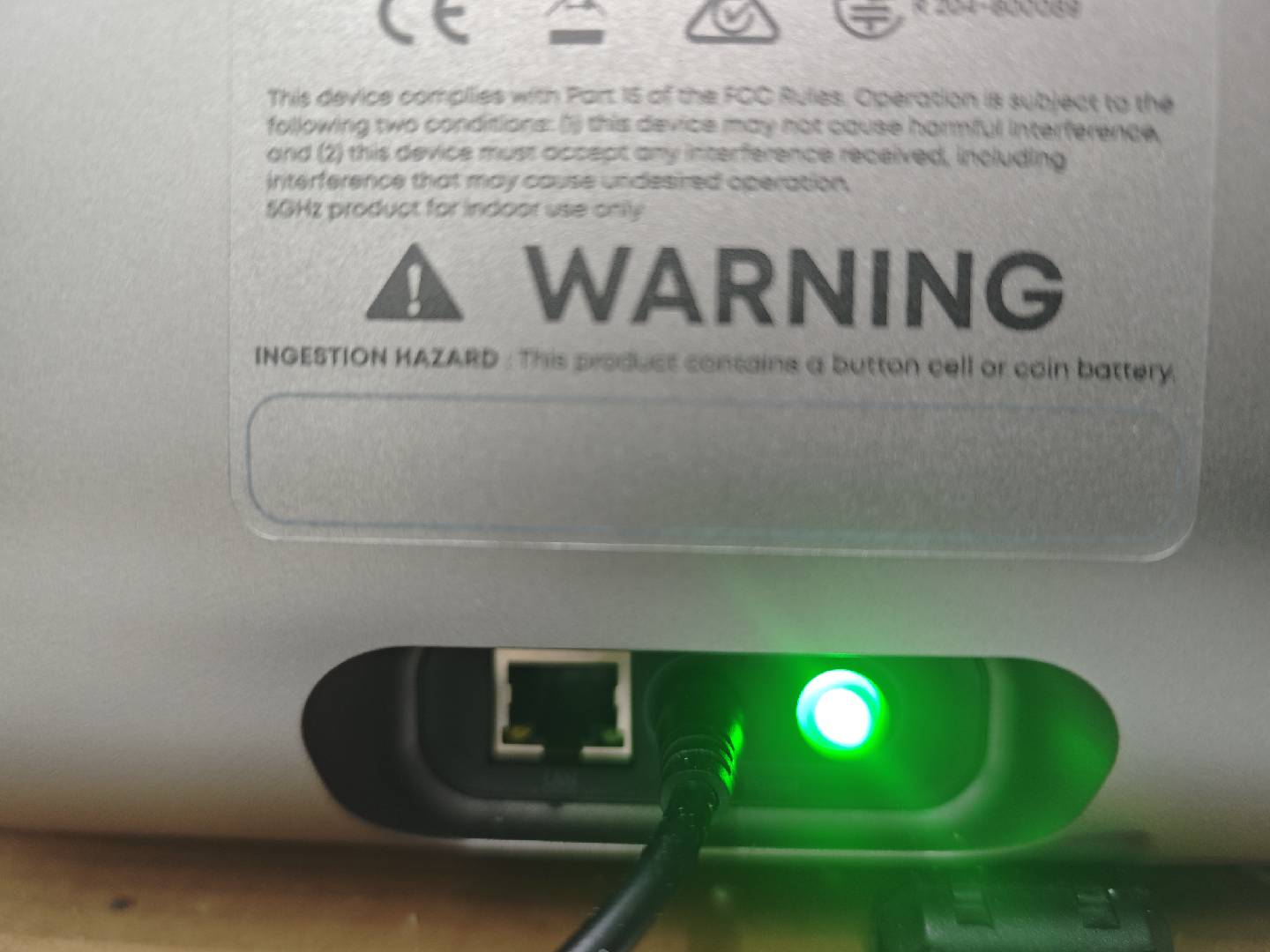
Quickly press the power button on the side of the printer three times to toggle AP Mode.
-
When you hear a chime and the status indicator turns purple, AP Mode is enabled and waiting for connection.

¶ How to Connect Your Computer to the Printer's Wi-Fi
-
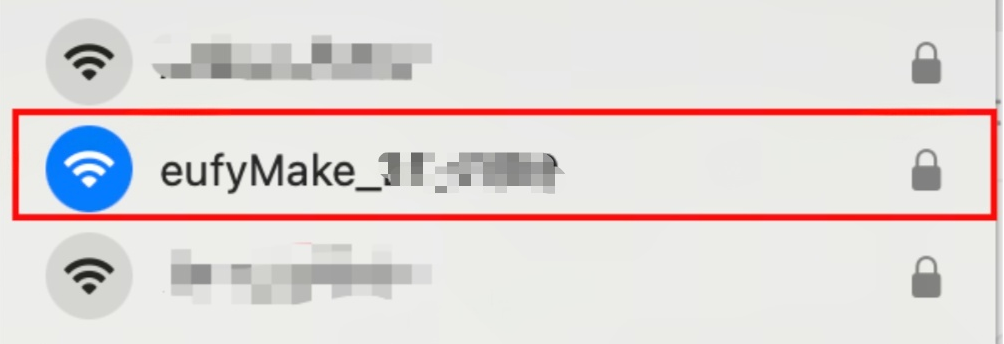
Open your computer’s list of available Wi-Fi networks.
-
Find the network (SSID) starting with eufymake.
-
Click to connect and enter the password:
- Password: The last 8 digits of your printer’s Serial Number (SN).
- Tip: You can view the Wi-Fi name and password in Printer Settings within the software.
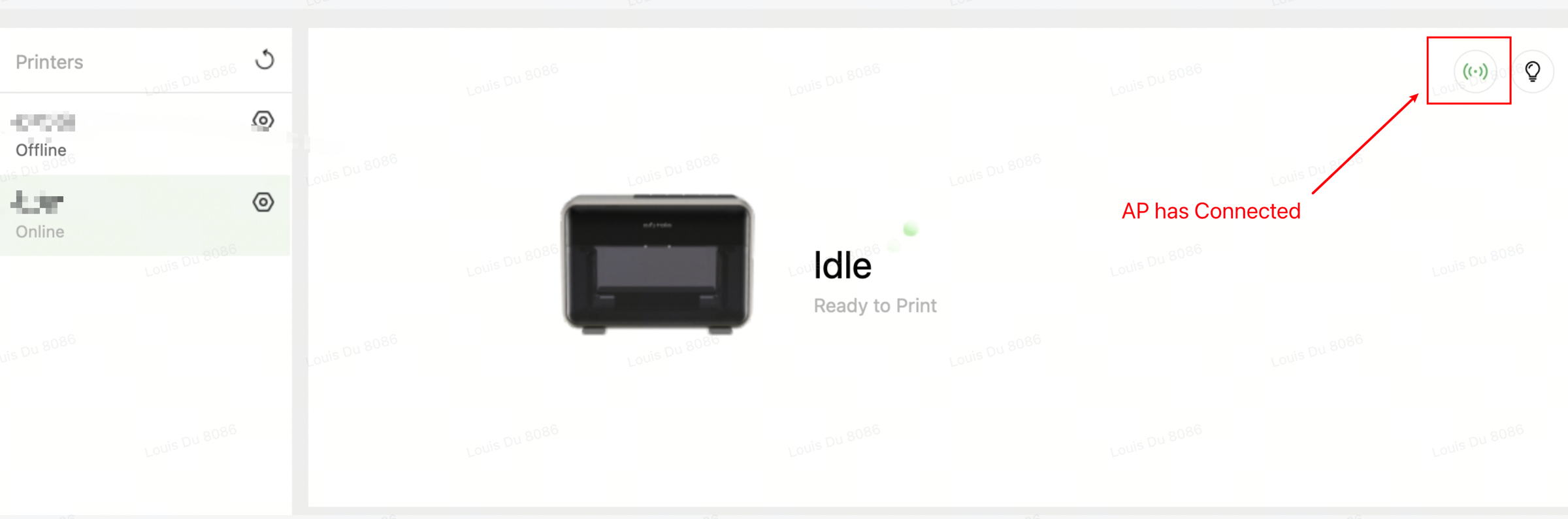
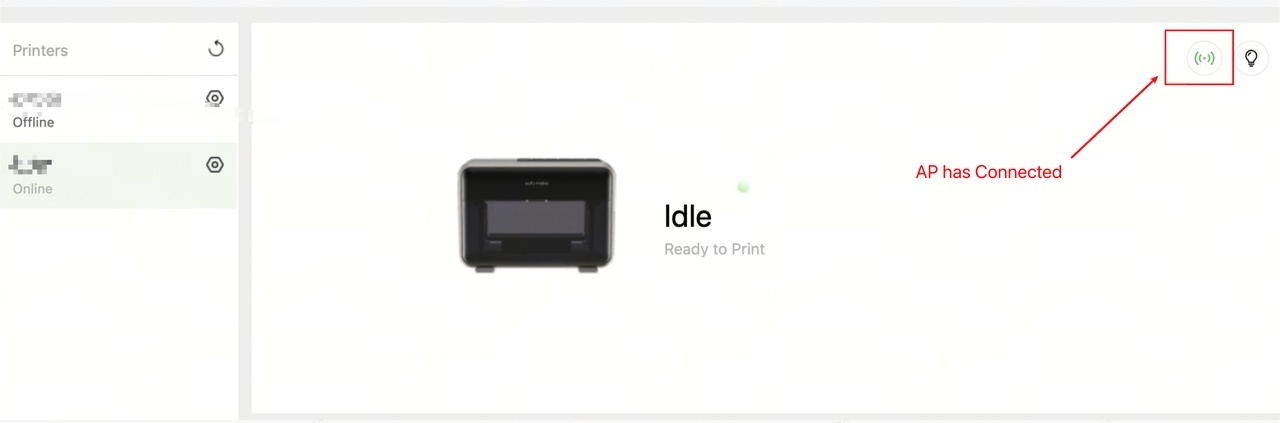
Once connected, the device page in the software will display Connected.
¶ How to Enter/Exit Offline Mode
-
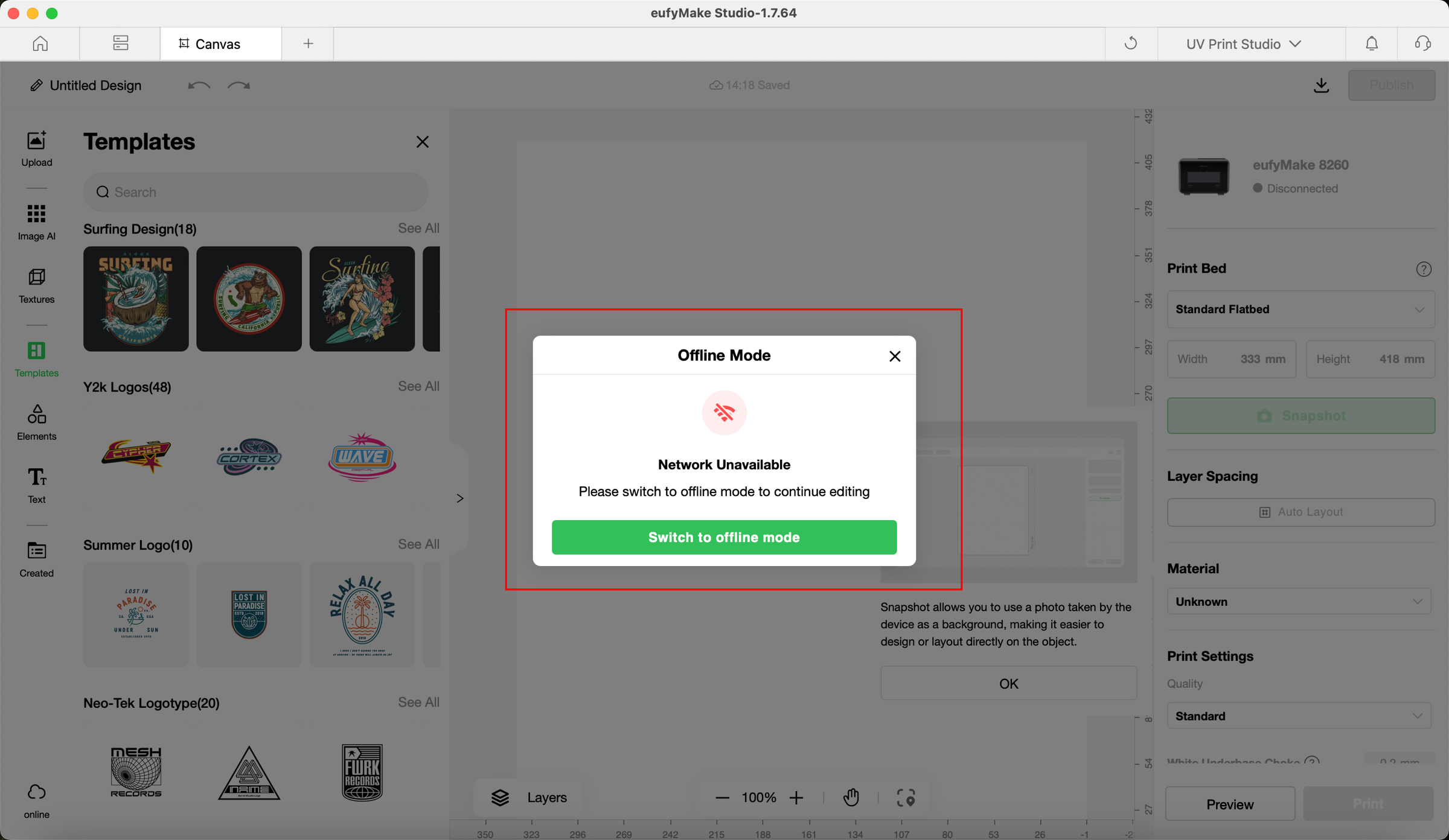
Automatic Switching: When your computer disconnects from the internet, a pop-up will prompt you to switch to Offline Mode. When the connection is restored, another prompt will ask if you want to switch back to Online Mode.
-
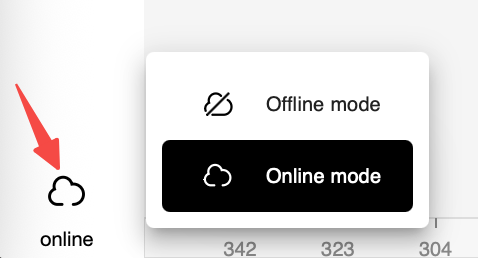
Manual Switching: You can also manually switch at any time by clicking the network status icon in the bottom-left corner of the software interface.
¶ Designing in Offline Mode
The editor in Offline Mode retains all core design features, and the interface is identical to Online Mode.
⚠️ However, cloud-dependent functions are disabled, such as:
-
Image AI
-
3D Texture mode
-
Online Elements, Templates, and Texture libraries
¶ How to Save Files in Offline Mode
Crucial: As soon as you switch to Offline Mode, you must immediately save your current project as a local file on your computer. All subsequent changes and new designs created in Offline Mode must be manually saved to your local hard drive.
¶ Frequently Asked Questions (FAQ)
¶ Printer AP Mode
Q1: What should I do before enabling AP Mode?
A: Prepare in advance while connected to the internet:
-
Make sure you are logged into your account.
-
Confirm that your account is linked to the device (including shared accounts).
-
Download any important cloud-based content, such as images or templates, as these are not accessible in AP Mode.
Q2: What if the connection is slow or unstable?
A: AP Mode can be affected by interference from nearby Wi-Fi networks.
-
Solution: Switch the AP Mode frequency band to 5GHz in the printer settings.
-
Note: After switching, disconnect and reconnect your computer to the printer’s Wi-Fi.
¶ Editor Offline Mode
Q1: Which features are unavailable in Offline Mode?
A: All cloud-dependent features are disabled, including:
-
Access to Cloud Projects
-
The Explore community
-
Online features within Canvas (Image AI, 3D Textures, Elements, Templates, and Texture libraries)
Tip: Always download required files and assets to your local computer before going offline.