¶ What Is Bidirectional Printing?
Bidirectional printing is a printing mode in which the print head deposits ink during both its forward and return passes.
Unlike unidirectional printing, where the print head deposits ink in only one direction and returns without printing, bidirectional printing makes use of both passes. This significantly improves printing efficiency and can reduce total print time by approximately 50%.
Key characteristics:
- Faster printing: Print time is nearly halved, significantly improving batch production efficiency.
- Slightly lower precision: Bidirectional printing requires precise ink-dot alignment, so calibration is essential to maintain print quality.
- Calibration required: Bidirectional Calibration must be completed before first use.
¶ Bidirectional Printing Workflow
¶ I. Preparation Before Use
¶ 1. Check the Software and Firmware Versions
Bidirectional printing is supported on both PC and mobile devices.
The following minimum versions are required:
<!--br {mso-data-placement:same-cell;}--> td {white-space:nowrap;border:0.5pt solid #dee0e3;font-size:10pt;font-style:normal;font-weight:normal;vertical-align:middle;word-break:normal;word-wrap:normal;}
Platform |
Software |
Minimum Version |
PC |
eufyMake Studio |
4.3.3 |
Mobile |
Anker Make Studio |
5.0.0 |
Printer |
Firmware |
4.0.9 |
Note: The printer firmware must also be updated to the required version. Updating only the PC software or mobile app will not make the bidirectional printing option available.
You can check for updates using the following paths:
- PC: Settings → Check for Updates
- Mobile app: Settings → About → Check for Updates
Alternatively, download the latest software versions from the official website.
¶ 2. Check the Supported Printing Scenarios
Supported scenarios:
- Flatbed printing (Mini plate / A3 standard plate)
- Thick material printing (same as unidirectional printing, with no additional height limit)
- 2.5D printing (0.3–5 mm thickness)
Currently unsupported scenarios:
- Roll to Film
- Rotary
- Flexible White
For unsupported scenarios, the bidirectional printing option will be grayed out in the editor. Hovering over the option will display a tooltip explaining why it is unavailable.
¶ II. Bidirectional Calibration
Bidirectional printing requires highly accurate ink-dot alignment. A dedicated Bidirectional Calibration process compensates for differences in ink-dot placement between the forward and return passes.
Calibration must be completed before using bidirectional printing for the first time, after replacing the print head, or when the existing calibration becomes invalid.
¶ PC
¶ Calibration entry point
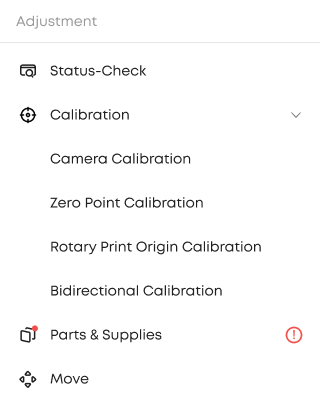
Device page → Adjustment → Calibration → Bidirectional Calibration
¶ Step 1: Read the instructions
| Step description | Illustration |
| Click Bidirectional Calibration to view the instructions and operating guide. |
 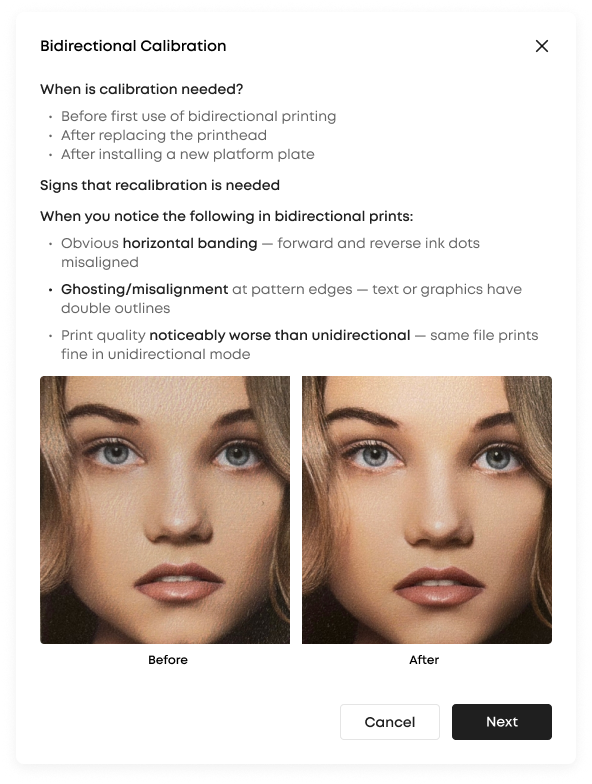 |

¶ Step 2: Print the calibration pattern
| Step description | Illustration |
| Click Start. The device first runs a self-check and then prints a calibration pattern. If the self-check or the printing fails, a prompt appears; follow the prompt to retry. |
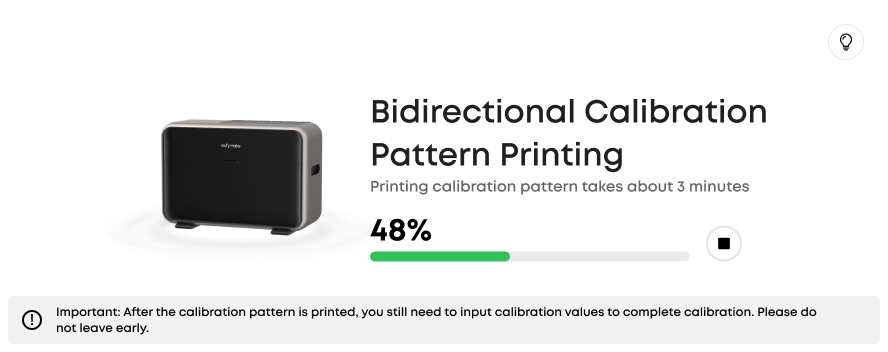 |
¶ Step 3: Enter the line numbers
| Step description | Illustration |
| The calibration pattern contains three groups of lines: S / M / L. For each group, pick the number (1–15) of the straightest line and enter it. All three groups must be filled in before you can submit. |
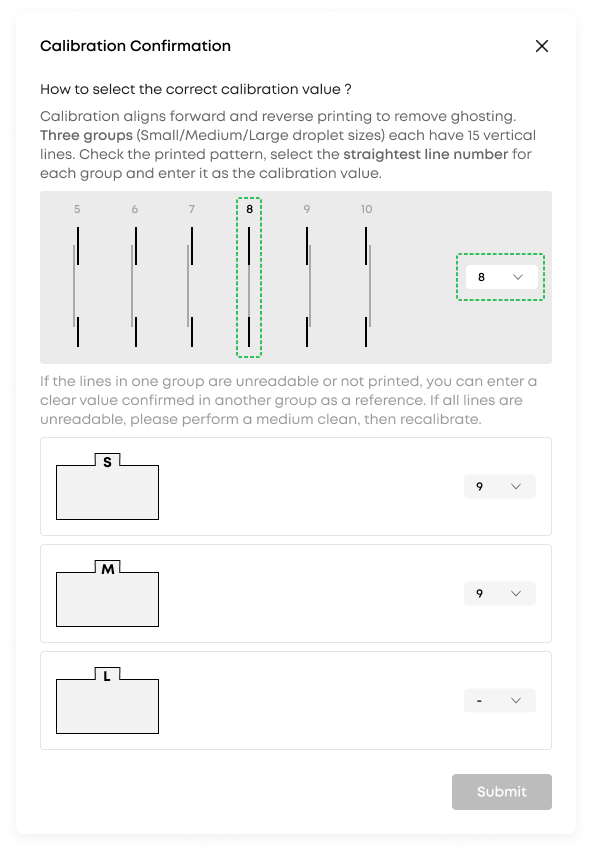 |
¶ Step 4: Confirm the calibration
| Step description | Illustration |
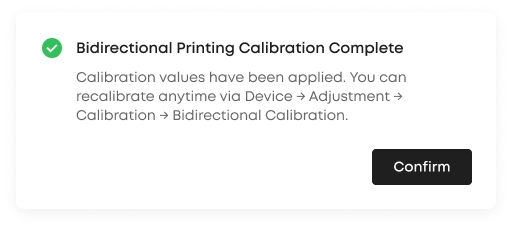
| Click Submit to send the calibration values to the device. On success, the message "Bidirectional Printing Calibration Complete" appears, and you can start bidirectional printing. If submission fails, you can retry; there is no need to reprint the calibration pattern. |
 |

¶ APP:
¶ Calibration entry point
Device page → Adjustment → Calibration → Bidirectional Calibration
¶ Step 1: Read the instructions
| Step description | Illustration |
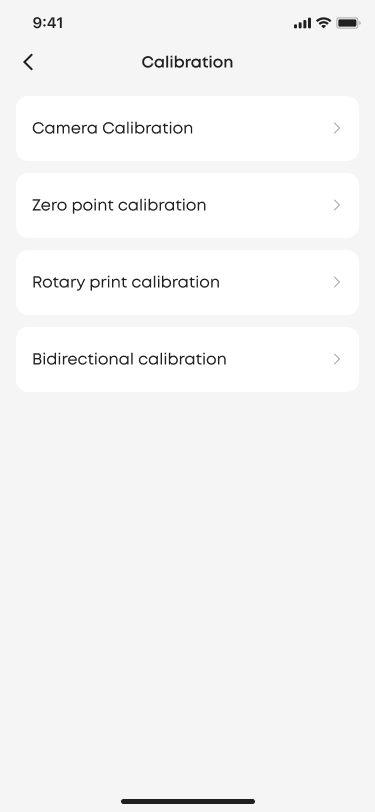
| Click Bidirectional Calibration to view the instructions and operating guide. |
 |
¶ Step 2: Print the calibration pattern
| Step description | Illustration |
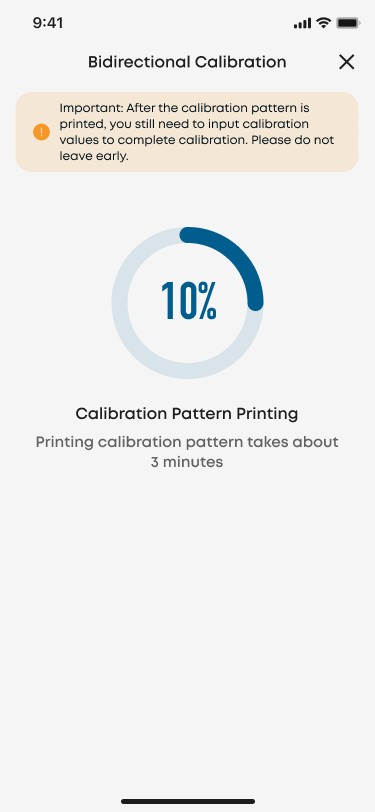
| Click Start. The device first runs a self-check and then prints a calibration pattern. If the self-check or the printing fails, a prompt appears; follow the prompt to retry. |
|
¶ Step 3: Enter the line numbers
| Step description | Illustration |
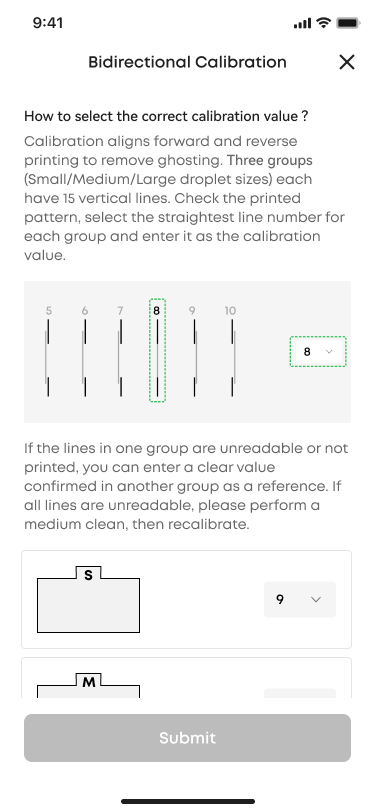
| The calibration pattern contains three groups of lines: S / M / L. For each group, pick the number (1–15) of the straightest line and enter it. All three groups must be filled in before you can submit. |
|
¶ Step 4: Confirm the calibration
| Step description | Illustration |
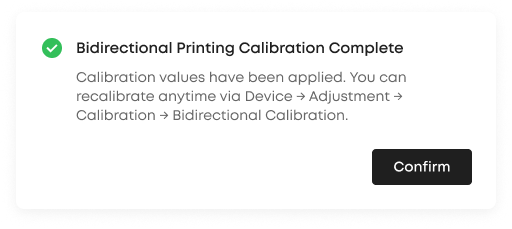
| Click Submit to send the calibration values to the device. On success, the message "Bidirectional Printing Calibration Complete" appears, and you can start bidirectional printing. If submission fails, you can retry; there is no need to reprint the calibration pattern. |
|
¶ III. Enable Bidirectional Printing
Once calibration is complete, open the Print Settings panel and change Print Direction from Unidirectional to Bidirectional.
If you attempt to enable bidirectional printing for the first time without completing calibration, a guidance dialog will appear, prompting you to complete calibration before proceeding.
¶ Bidirectional vs. Unidirectional Printing: How to Choose?
The main advantage of bidirectional printing is speed. However, it requires more precise printing conditions than unidirectional printing.
In general, choose Bidirectional for faster production and Unidirectional when maximum precision is required, particularly when printing light colors, gradients, or substrates with significant height variations.
¶ Overall comparison
| Item | Unidirectional printing | Bidirectional printing |
| Print speed | Baseline | Nearly twice as fast ✅ |
| Print precision | Higher ✅ | Slightly lower, with a potential risk of ink-dot misalignment |
| Calibration required? | Not required | Yes, Bidirectional Calibration is required |
| Best-fit scenarios | Fine artwork, light colors, gradients, and substrates with large height variations | Large batches, large-format prints, and projects with standard precision requirements |
| Symptoms when problems occur | — | Ghosting, banding, fuzzy edges |
¶ Scenario recommendations
| Your scenario | Recommendation | Why |
| Batches of coasters, fridge magnets, stickers | ✅ Bidirectional | Large quantities and print areas benefit significantly from faster printing, while precision requirements are generally moderate. |
| Large-format artwork (big wood boards, big canvases) | ✅ Bidirectional | Individual prints can take a long time, making the time savings from bidirectional printing particularly noticeable. |
| Small-item batches (phone cases, keychains, etc.) | ✅ Bidirectional | Printing multiple items in a single job makes production efficiency a priority. |
| Fine text, logos, line art | ✅ Unidirectional | Fine details are more susceptible to ghosting and blurred edges, so unidirectional printing generally produces sharper results. |
| High-precision photos, art reproduction | ✅ Unidirectional | These applications require greater consistency in color reproduction and fine detail. |
| Artwork with large light-color areas or many gradients | ✅ Unidirectional | Subtle banding and color deviations are more noticeable in light colors and gradients. |
| Substrates with large height variation (uneven surfaces) | ⚠️ Unidirectional preferred | A higher print head position increases the potential for ink-dot misalignment, making bidirectional printing more susceptible to errors. |
| First print after replacing the printhead | ⚠️ Calibrate first, then bidirectional | Replacing the print head changes the ink-dot landing positions, so Bidirectional Calibration must be performed again. |
¶ Two Common Issues to Avoid
¶ 1. Enabling Bidirectional Printing Without Calibration
Always complete Bidirectional Calibration before using bidirectional printing.
Without proper calibration, print quality is likely to deteriorate, potentially resulting in ghosting, banding, or misaligned details.
¶ 2. Using Bidirectional Printing on Curled or Uneven Paper
The actual print height has a significant impact on bidirectional printing accuracy.
For substrates such as photo paper, which may appear flat but are prone to curling, make sure the material is pressed flat and securely positioned against the platform plate.
You can use tape or press bars along the edges to hold the material in place.
If an edge lifts during printing, ghosting or banding may appear in that area.
¶ Frequently Asked Questions (FAQ)
Q1: How do I use bidirectional printing?
Follow these steps:
- Check the software versions: Make sure the printer firmware is version 4.0.9 or later and the PC software is version 4.3.3 or later. You can check for updates in the PC software under Settings → Check for Updates. If either version is outdated, the feature may not appear or function correctly.
- Change the print direction: Open the Print Settings panel and switch Print Direction from Unidirectional to Bidirectional.
- Complete Bidirectional Calibration: If calibration has not been completed, follow the on-screen instructions to print the forward and reverse calibration lines, then manually enter the corresponding compensation values. Calibration takes approximately 5 minutes.
Until calibration is complete, the printer will continue using unidirectional printing to prevent alignment errors.
Q2: Which scenarios support bidirectional printing, and which do not?
Bidirectional printing currently supports:
- Flatbed printing
- Thick material printing (same as unidirectional printing, with no height limit)
- 2.5D printing (0.3–5 mm thickness)
With bidirectional printing enabled, flatbed printing speeds increase by approximately 40%–75%, depending on the selected mode. For 2.5D printing, Standard mode is approximately 50% faster.
Currently unsupported scenarios:
- Roll to Film
- Rotary
- Soft White
These scenarios are still being optimized and adapted for bidirectional printing and are not yet available.
Q3: How do I use bidirectional printing on the mobile app?
Bidirectional printing has been supported on the mobile app since Anker Make Studio version 5.0.0.
The process is similar to the PC workflow:
- Make sure the mobile app and printer firmware (version 4.0.9 or later) are updated to the required versions.
- Complete Bidirectional Calibration by navigating to Device Page → Adjustment → Calibration → Bidirectional Calibration.
- Open Print Settings and switch Print Direction from Unidirectional to Bidirectional.
For detailed instructions, refer to the Mobile App Calibration section under II. Bidirectional Calibration.
Q4: Do I need to recalibrate every time I switch between unidirectional and bidirectional printing?
No. Once Bidirectional Calibration has been completed, you can switch between unidirectional and bidirectional printing without recalibrating each time.
Recalibration is only required in the following situations:
- After replacing the print head
- When using a new type of platform plate that has not previously been calibrated
- After restoring the printer to factory settings
Each type of platform plate only needs to be calibrated once.
If you switch to another platform plate of the same type, such as replacing Mini plate A with Mini plate B, the system will not require recalibration.
However, we recommend recalibrating to ensure optimal precision. This takes approximately 5 minutes.
Q5: Does bidirectional printing affect print quality?
Bidirectional printing may slightly reduce print quality, although how noticeable the difference is can vary.
If your project requires particularly accurate detail reproduction, we recommend printing a test piece to compare the results before proceeding.
Alternatively, switch back to unidirectional printing for maximum precision.
Q6: What should I do if ghosting or banding appears during bidirectional printing?
Ghosting and banding are more common when using larger print beds, such as the A3 platform, and may persist even after calibration.
Try the following:
- Repeat Bidirectional Calibration, carefully selecting and adjusting the S, M, and L values as instructed until you achieve the best possible alignment.
- If the problem persists, switch back to unidirectional printing and contact eufyMake Customer Support.
Q7: What should I do if I cannot enter values during Bidirectional Calibration or the value list only goes up to 5?
This is a known issue, most commonly encountered on high-resolution displays or when using a trackpad.
The software currently supports display scaling of up to 150%. Support for higher scaling ratios is planned for a future update.
Possible solutions:
- Adjust your display scaling: Set your screen scaling to 150%, as officially recommended.
- Use an external mouse: Connect a mouse with a scroll wheel and use the wheel to select the required calibration values.
Note: Arrow keys and direct number entry are not supported in this drop-down menu.
Q8: Why doesn't the estimated print time change in the preview when I enable bidirectional printing?
This is a known issue where the estimated print time in the preview does not always update immediately after changing the print direction.
A fix is planned for a future software update.
Current workaround:
- Cancel the print job.
- Toggle Print Direction between Bidirectional and Unidirectional.
- Select Bidirectional again and resend the print job.
The preview should then display the correct estimated print time.
This issue only affects the displayed estimate. The actual print job will still benefit from the time savings provided by bidirectional printing.