¶ Overview
This article introduces OTA firmware upgrades for devices via the App and PC.
The firmware updates are OTA only and do not support version rollback.
¶ Update Types: Forced Update and Regular Update
| OTA Upgrade | Force Update | Regular Update |
| Differences | Fixes critical issues that affect normal device operation. The system will automatically perform the update and users cannot skip it. | Used for feature optimization or performance improvements. Does not affect basic device functionality. Users can choose whether to update. |
APP Update Flow
| AutomaticSettings Update | Manual Update | |
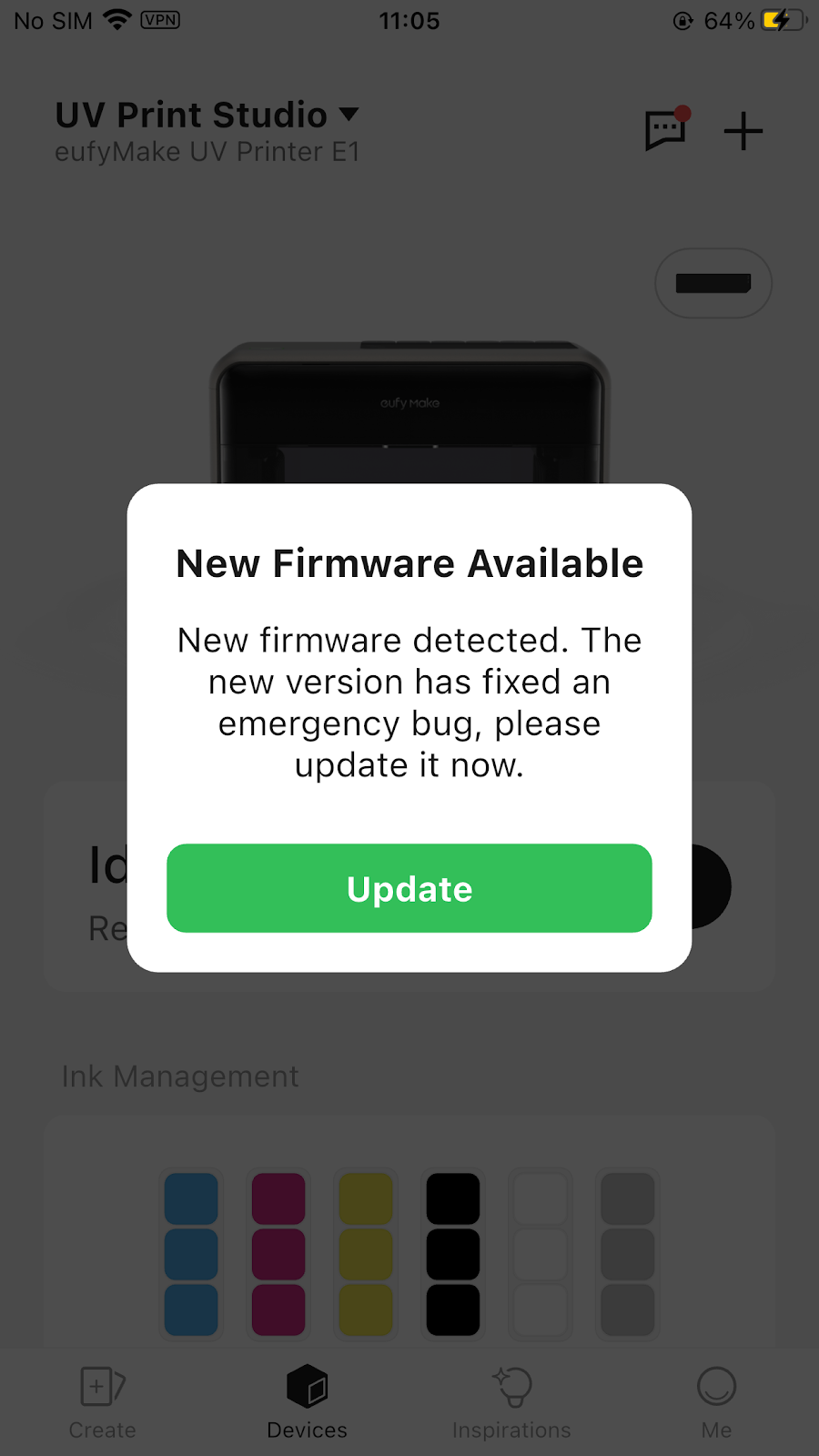
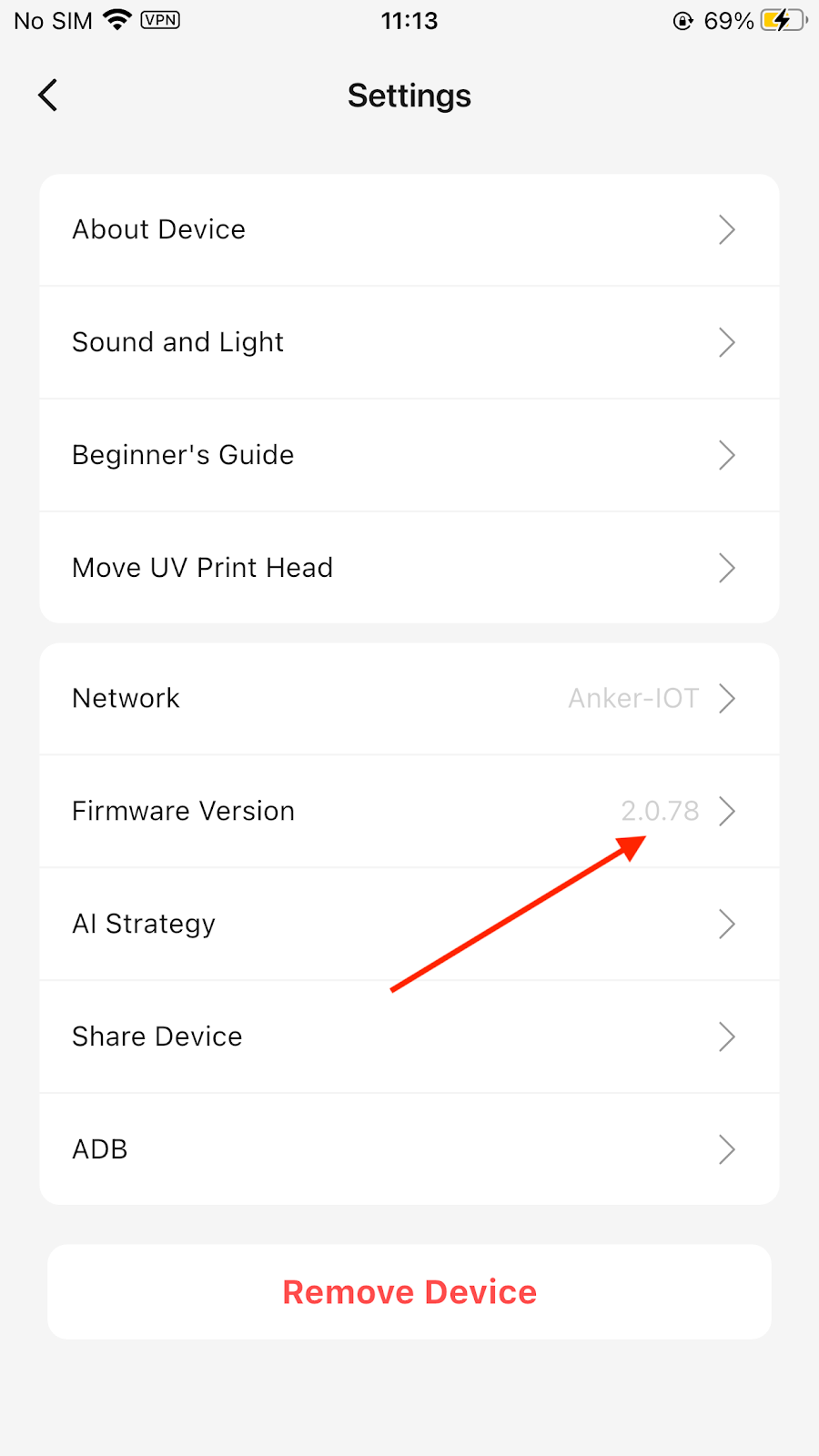
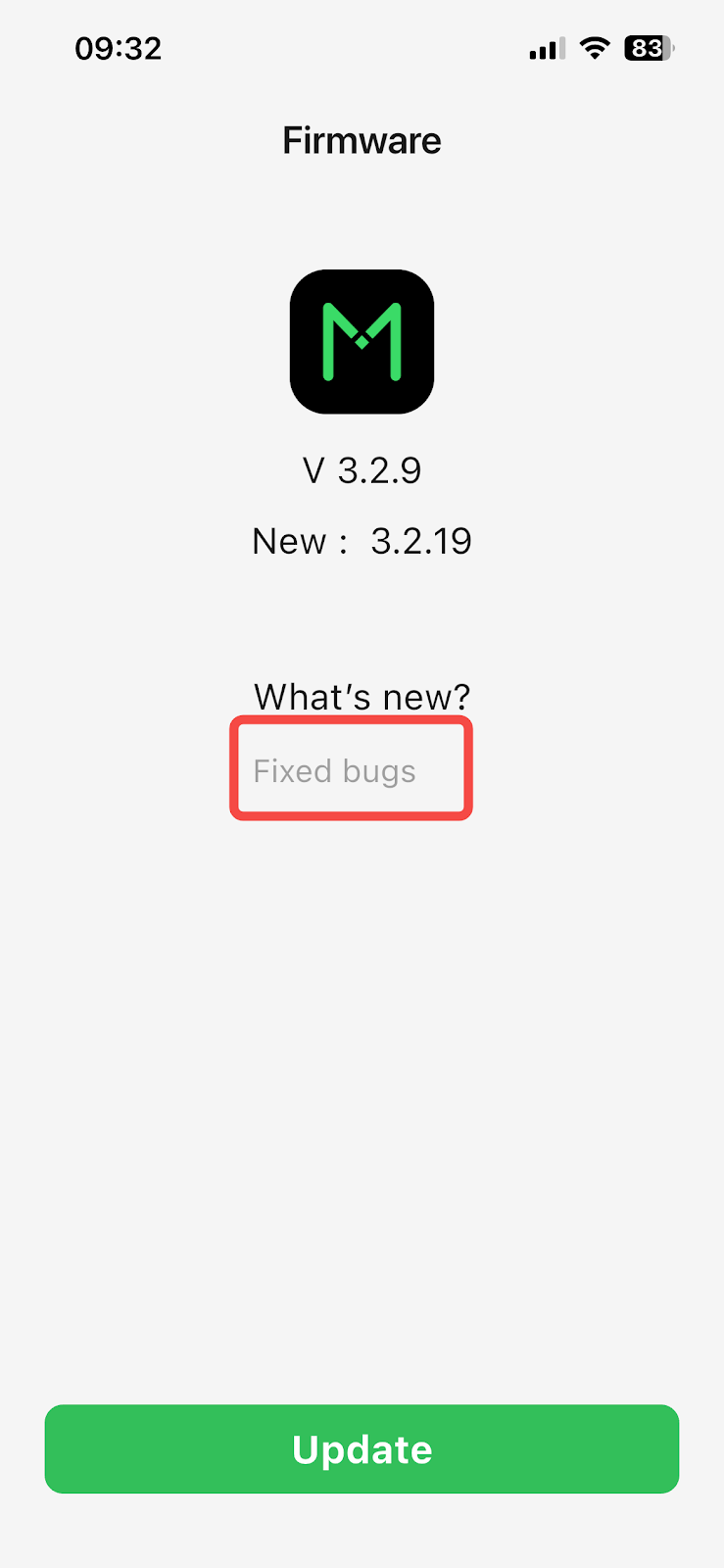
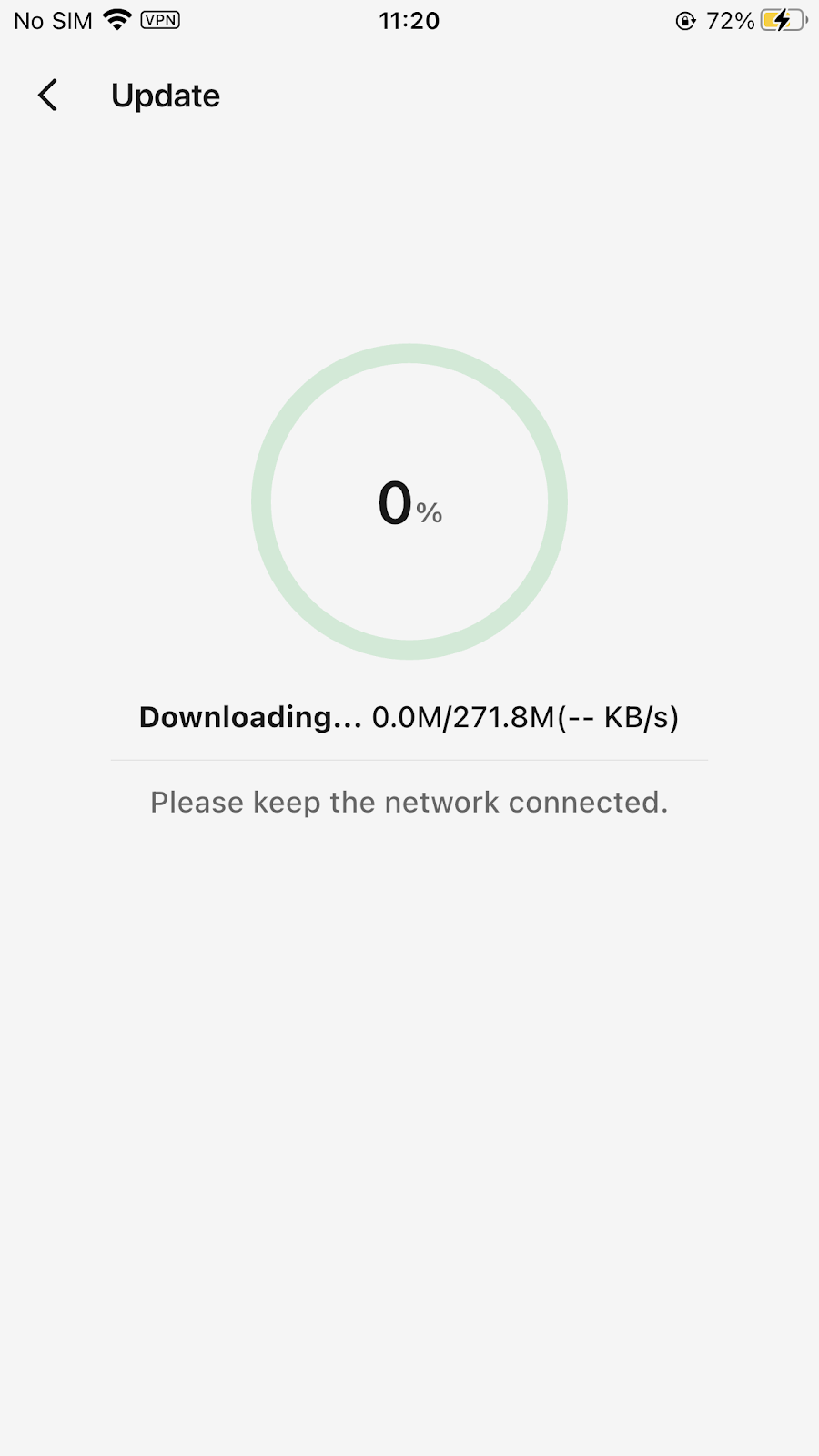
| OTA Upgrade Detection |
 |
 |
 |
 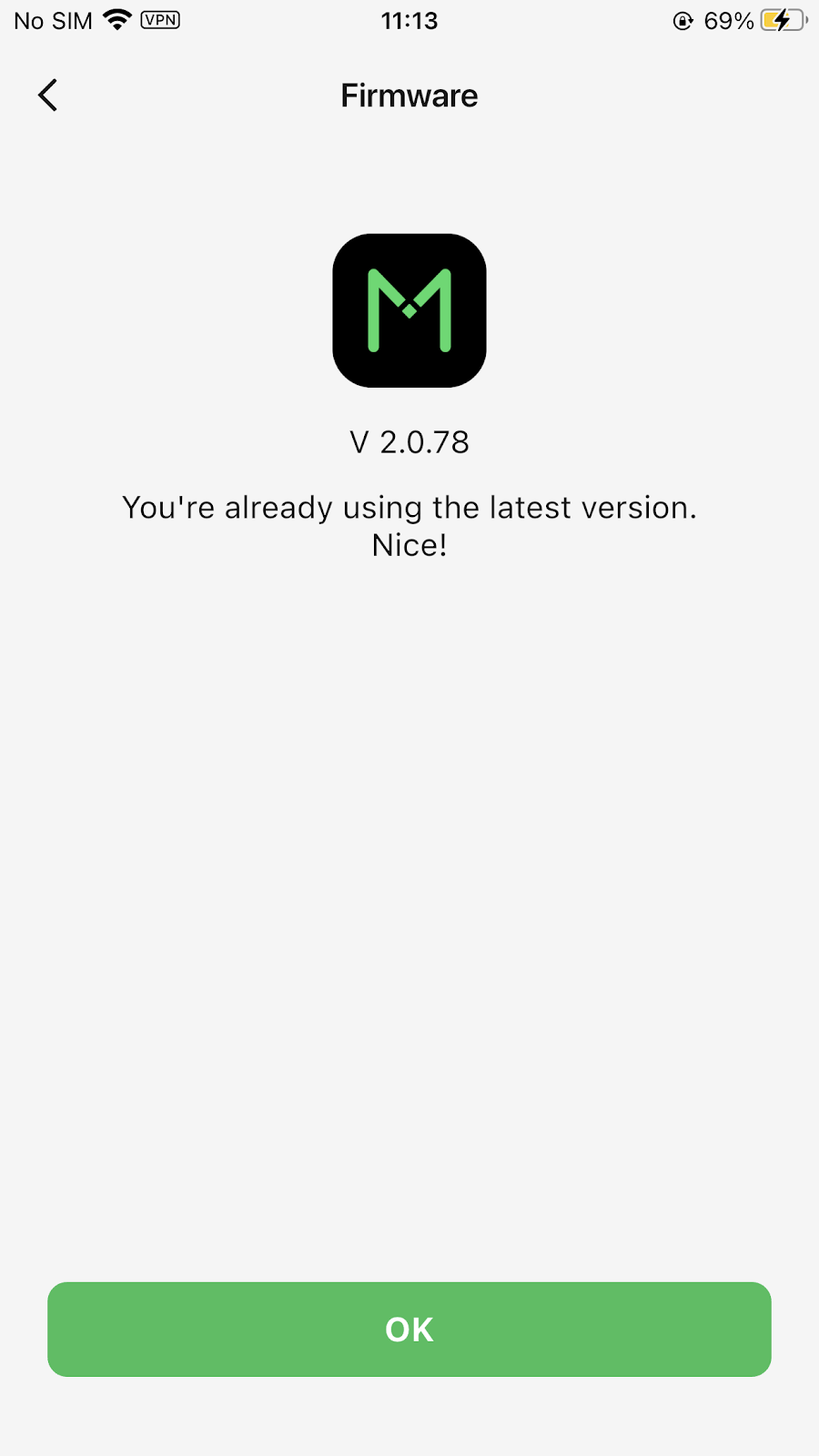 |
|
|
3. After tapping Update, do not power off the device. The device will restart automatically when installation is complete. (Forced updates automatically download and install the package, displaying the 'Installing' message.) 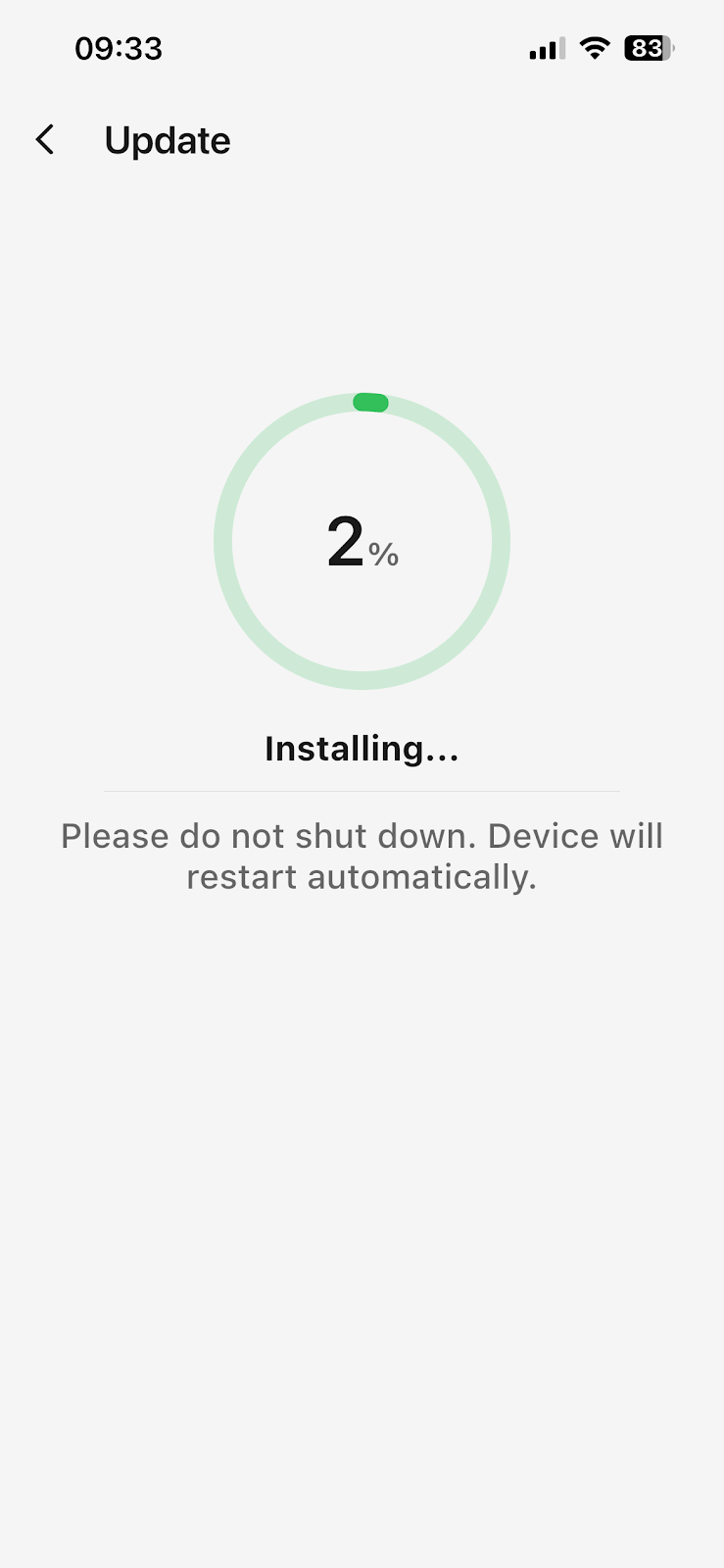 |
PC Update Flow
Note: Only the device owner can perform OTA-related operations.
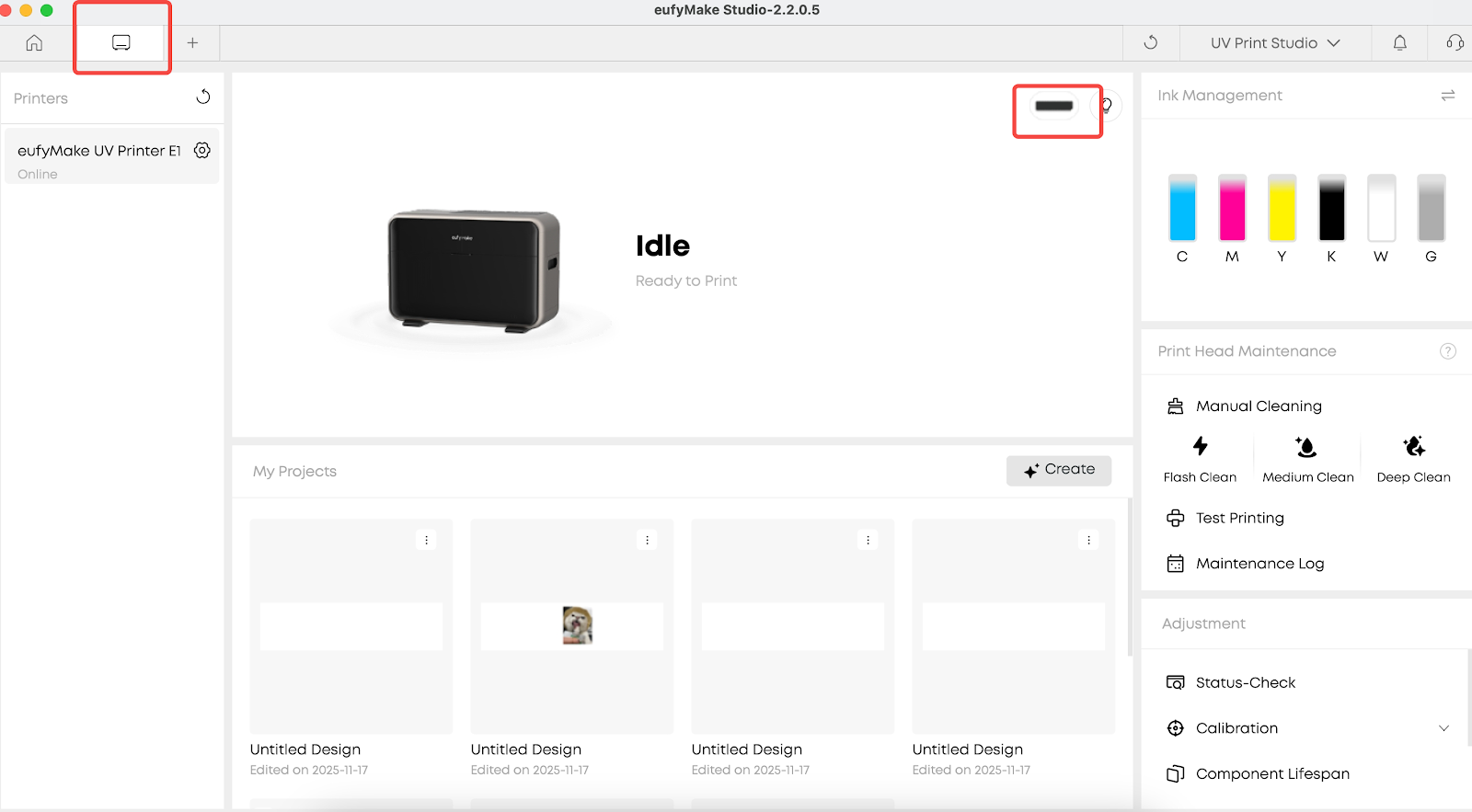
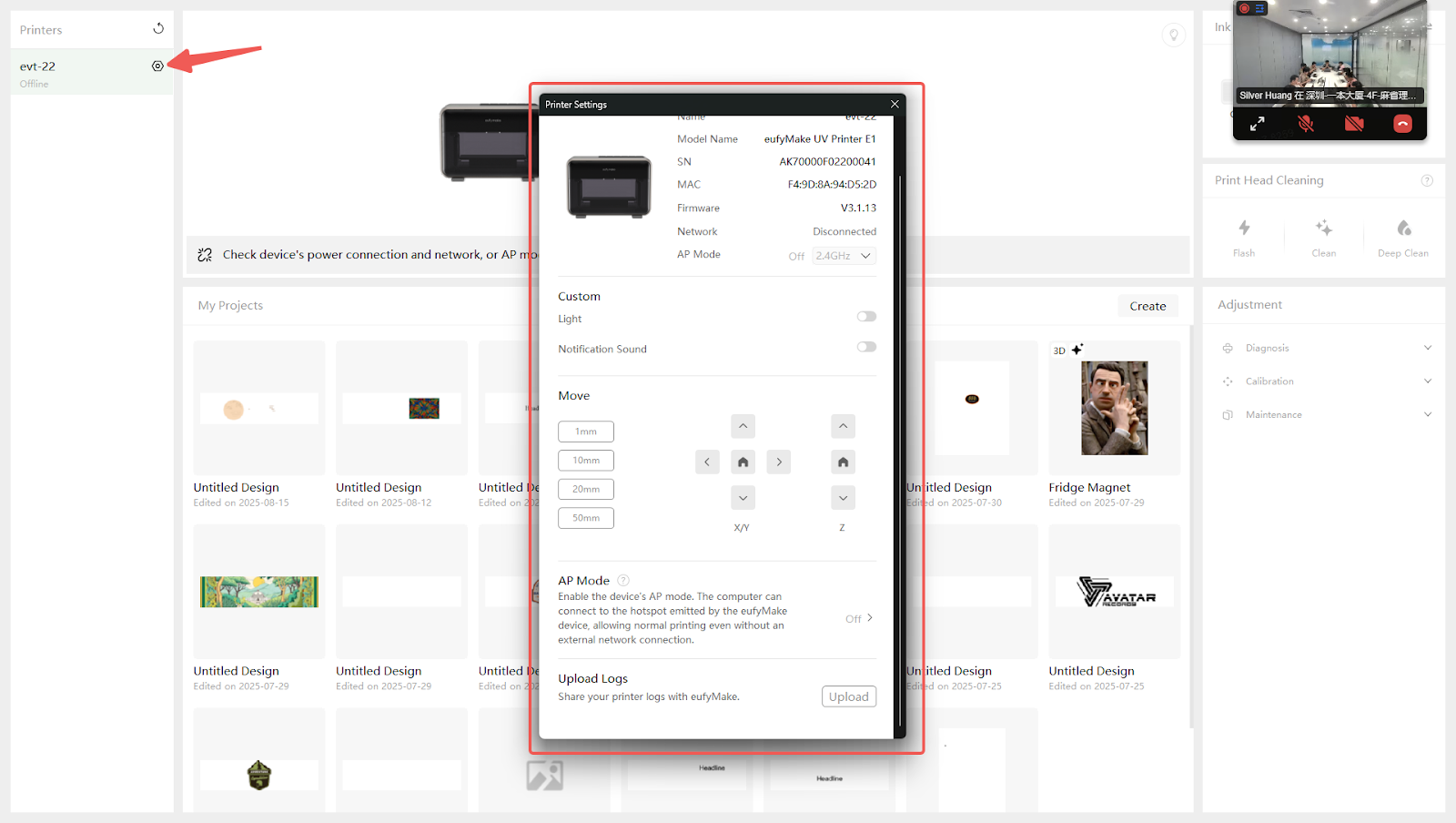
Click the gear icon in the left device list to open the printer settings panel.
The interface for a shared user is shown below:
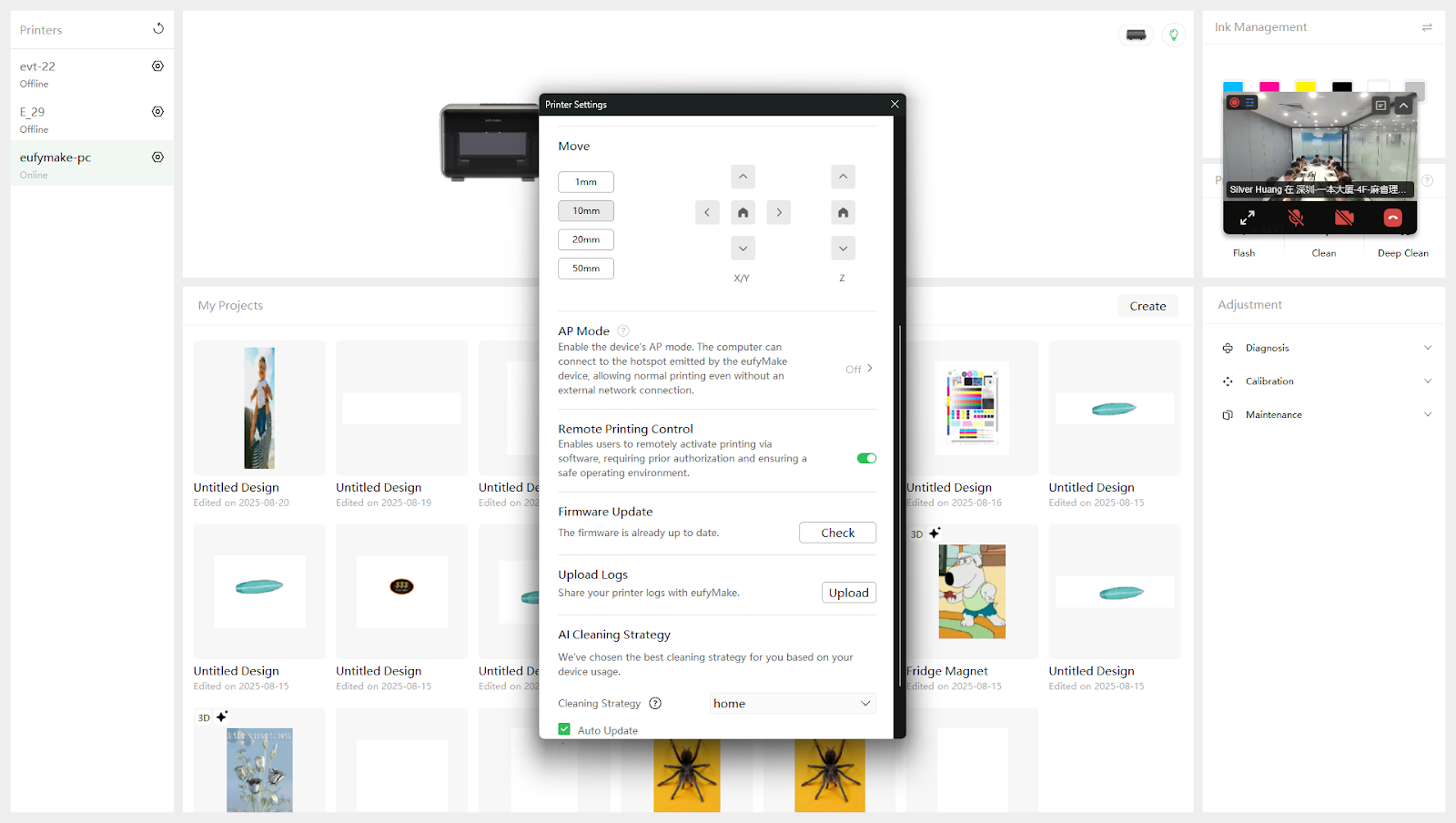
The interface for the device owner is shown below:
OTA Upgrade Detection
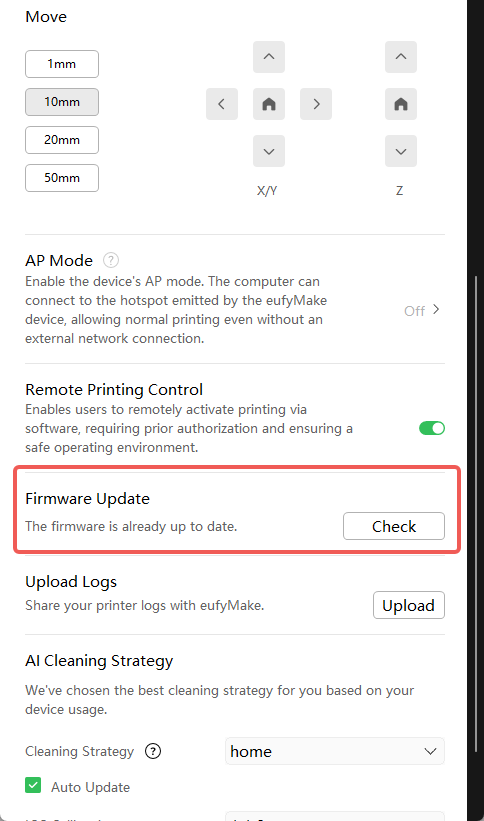
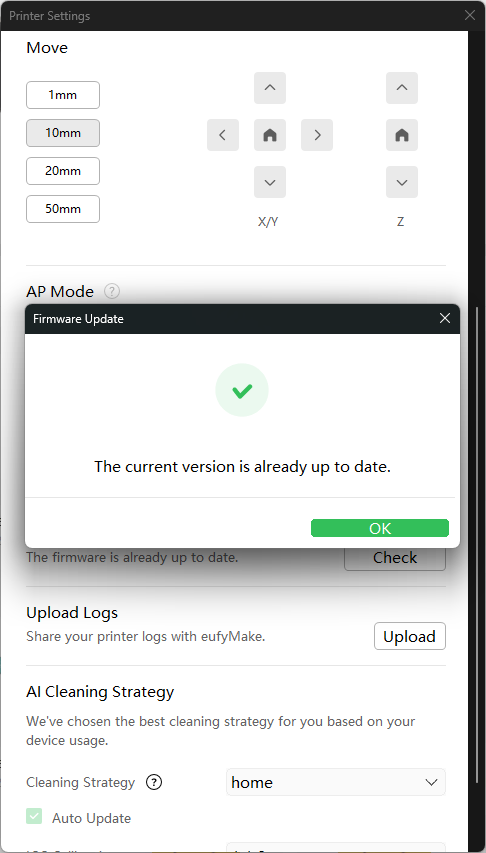
Click Check to retrieve the firmware OTA version.
If the message “The current version is already up to date” appears, no upgrade is required.
OTA Reminder
Pop-up reminder:
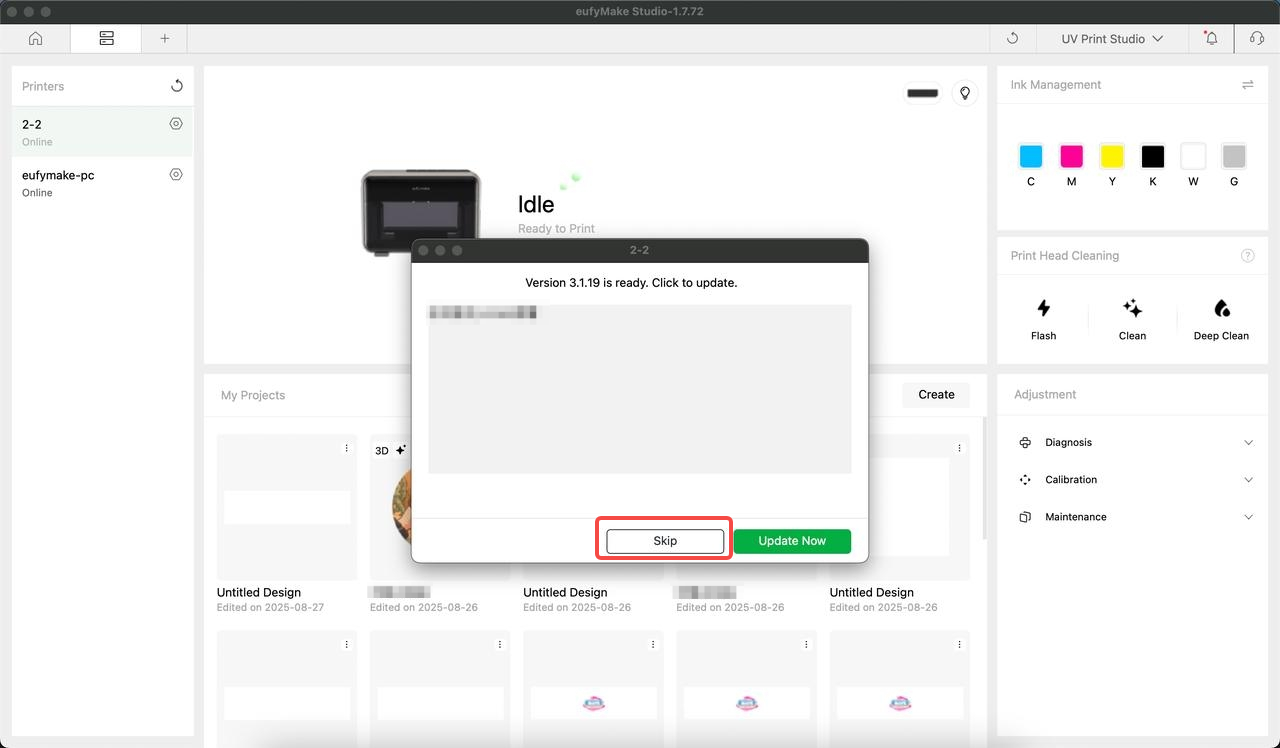
When a new version is available, a notification window will appear.
There are two update types:
Forced Update: No Skip / Cancel option
Regular Update
- Auto Update
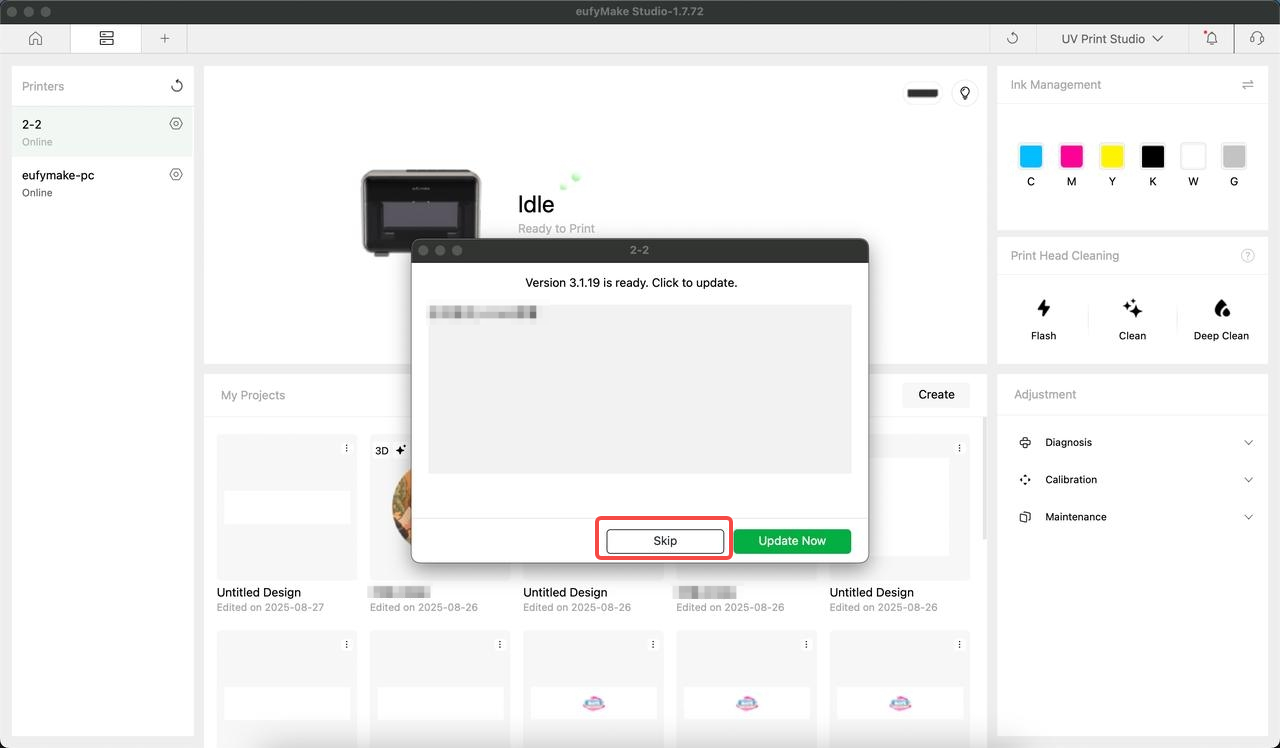
Click Update Now to begin the OTA upgrade. You can Skip if you don’t want to.
- Manual Selection
The device owner can manually select Update on the printer settings page.
When a new version is available, a red dot will appear, and the button text will change to "Update".
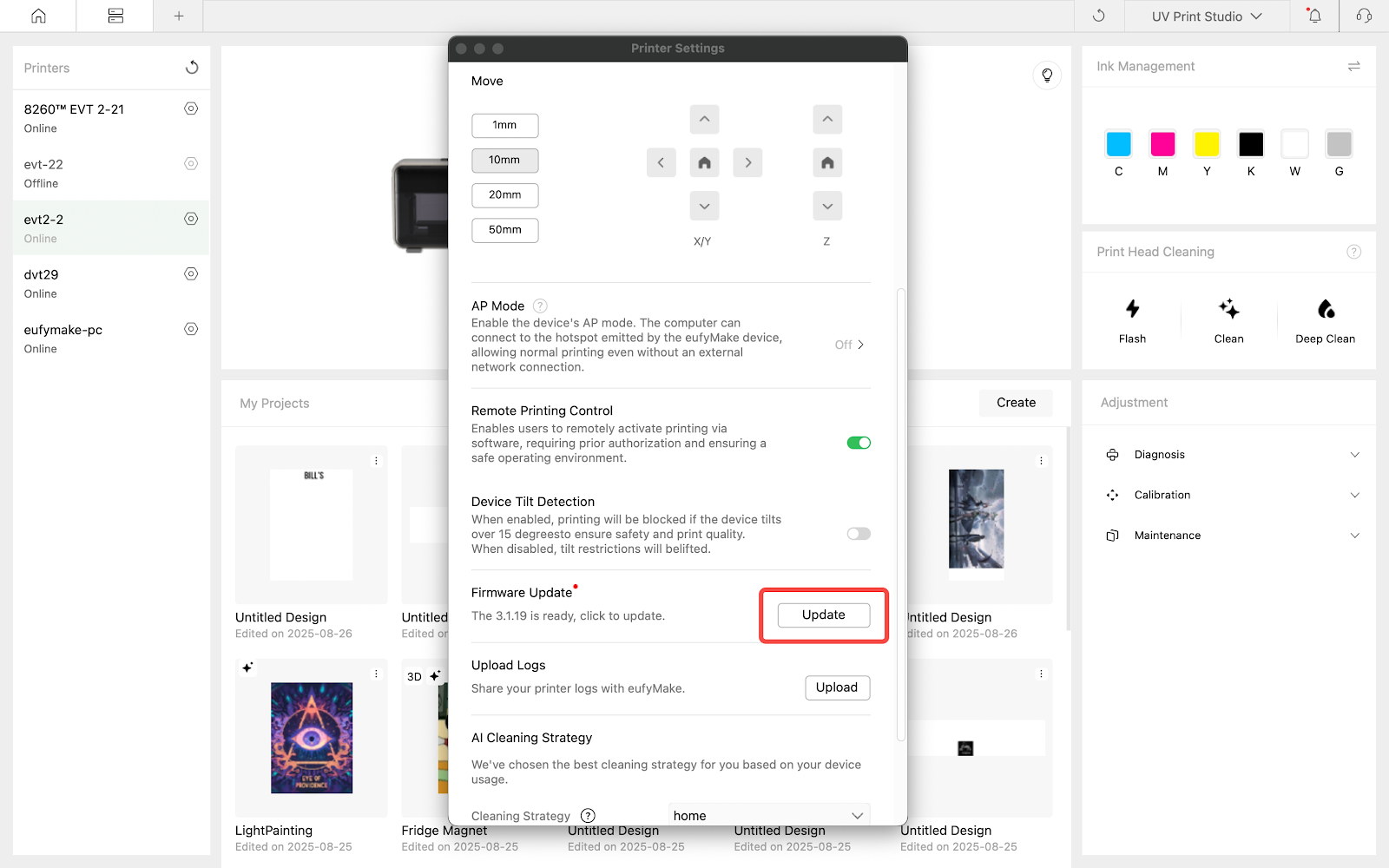
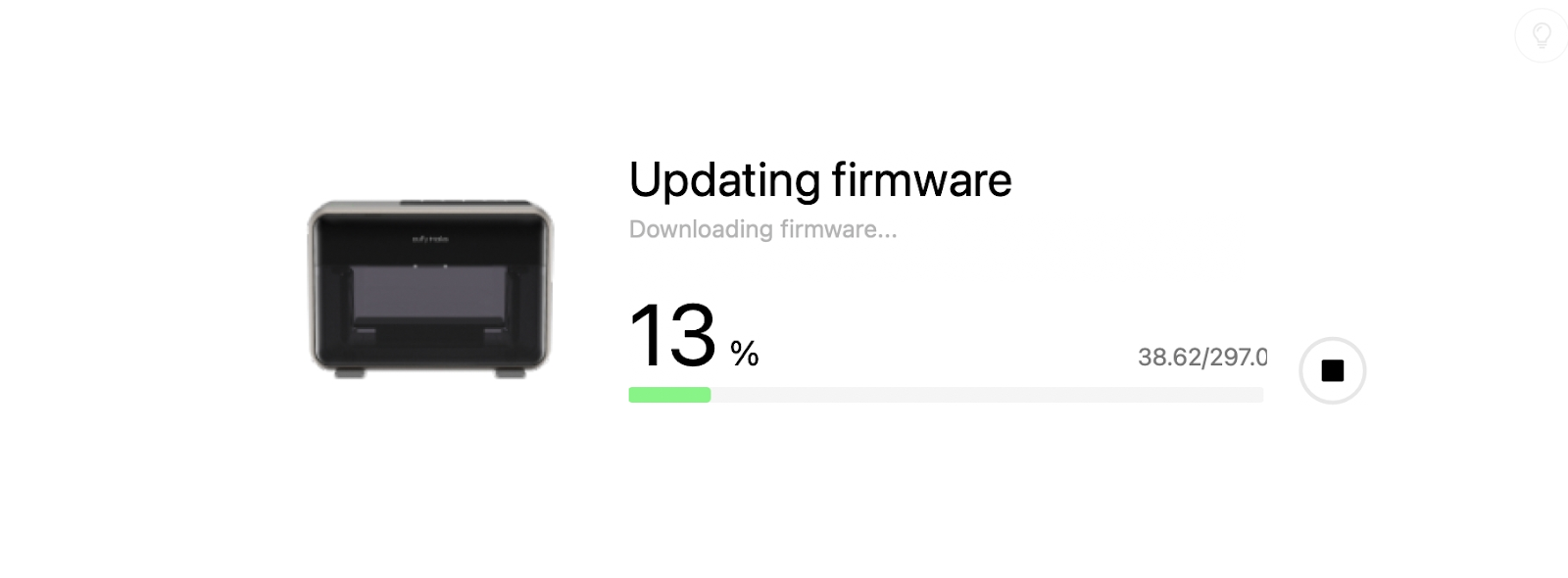
Click "Update Now" to start the update.
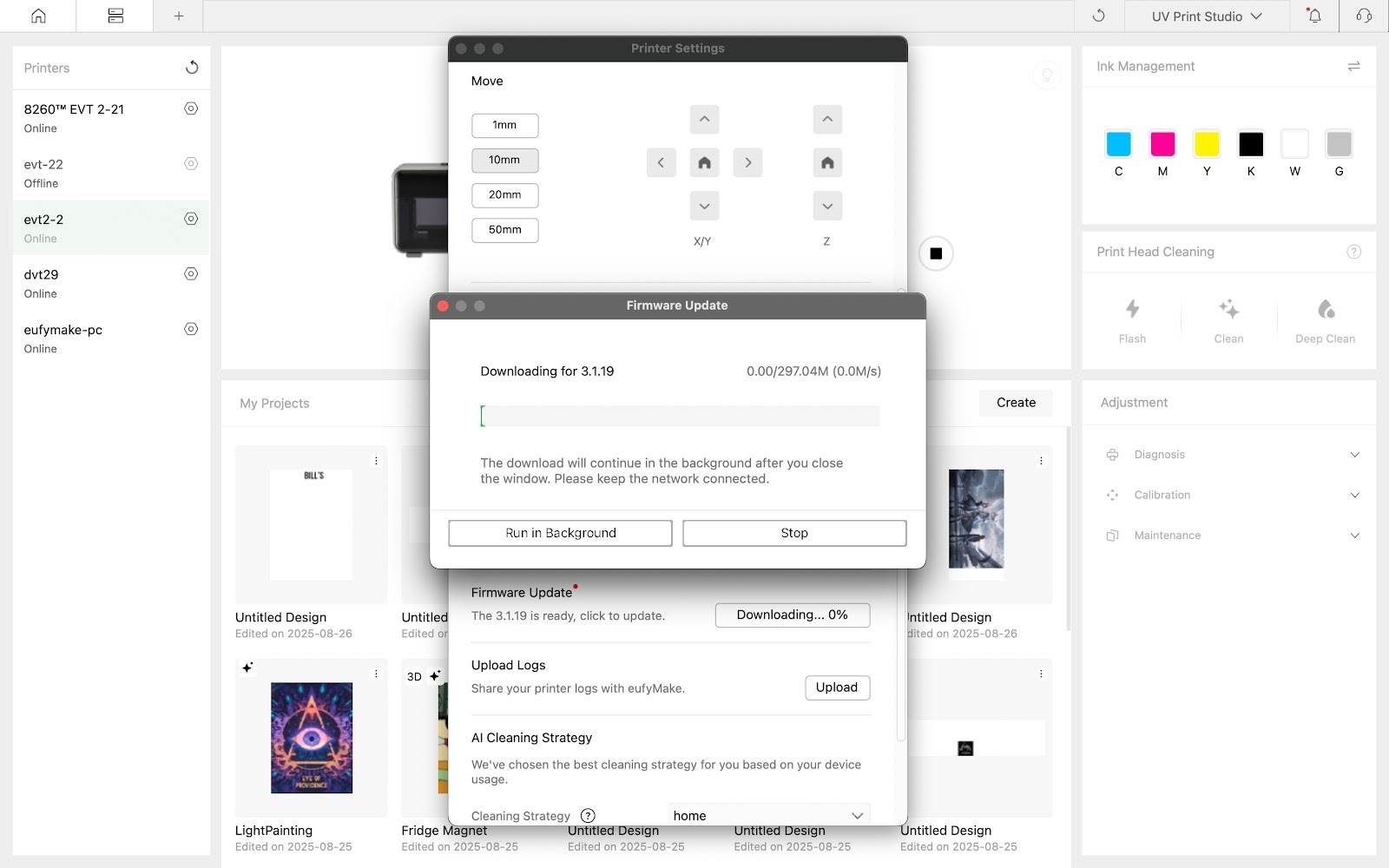
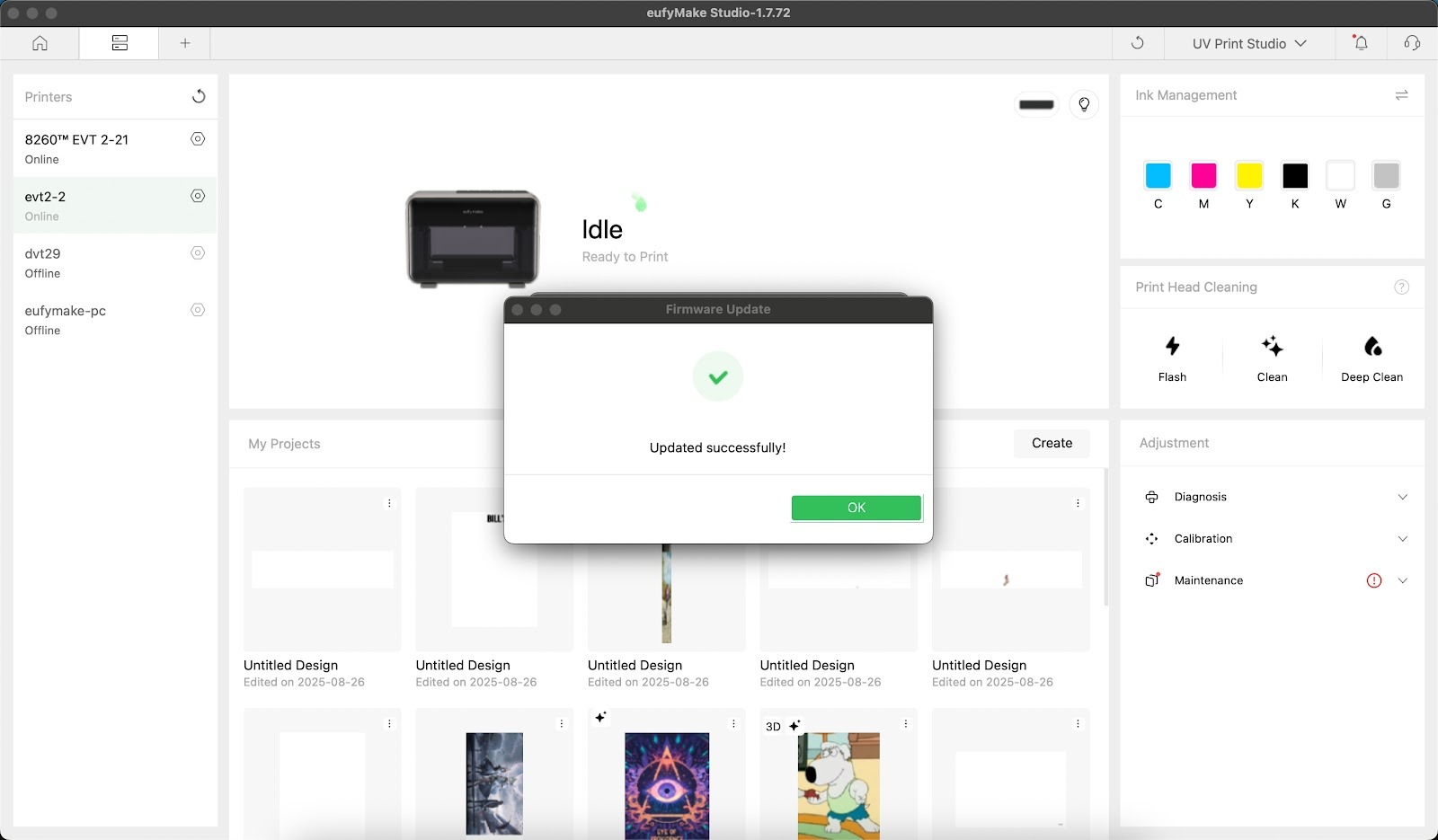
A pop-up message will confirm a successful update:
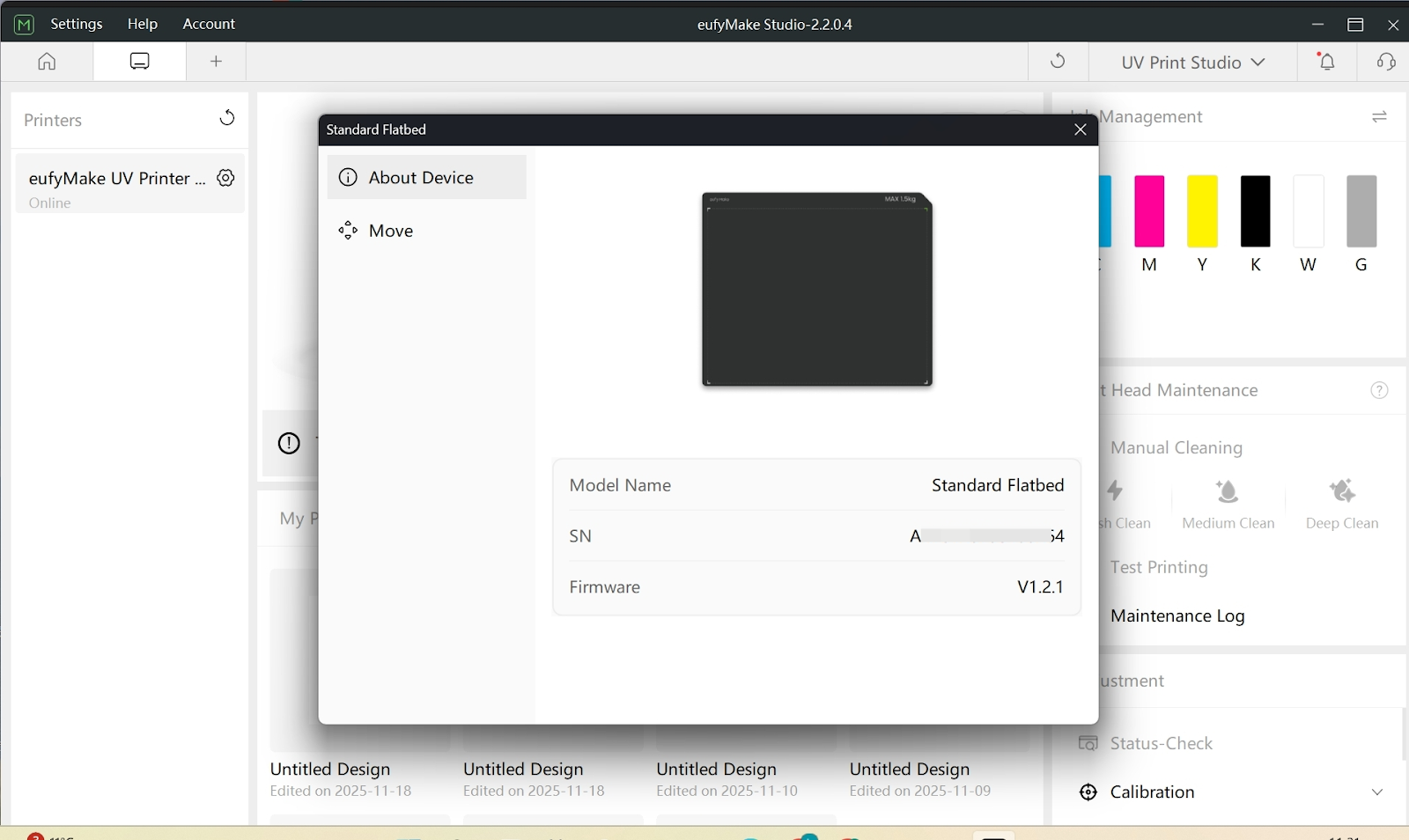
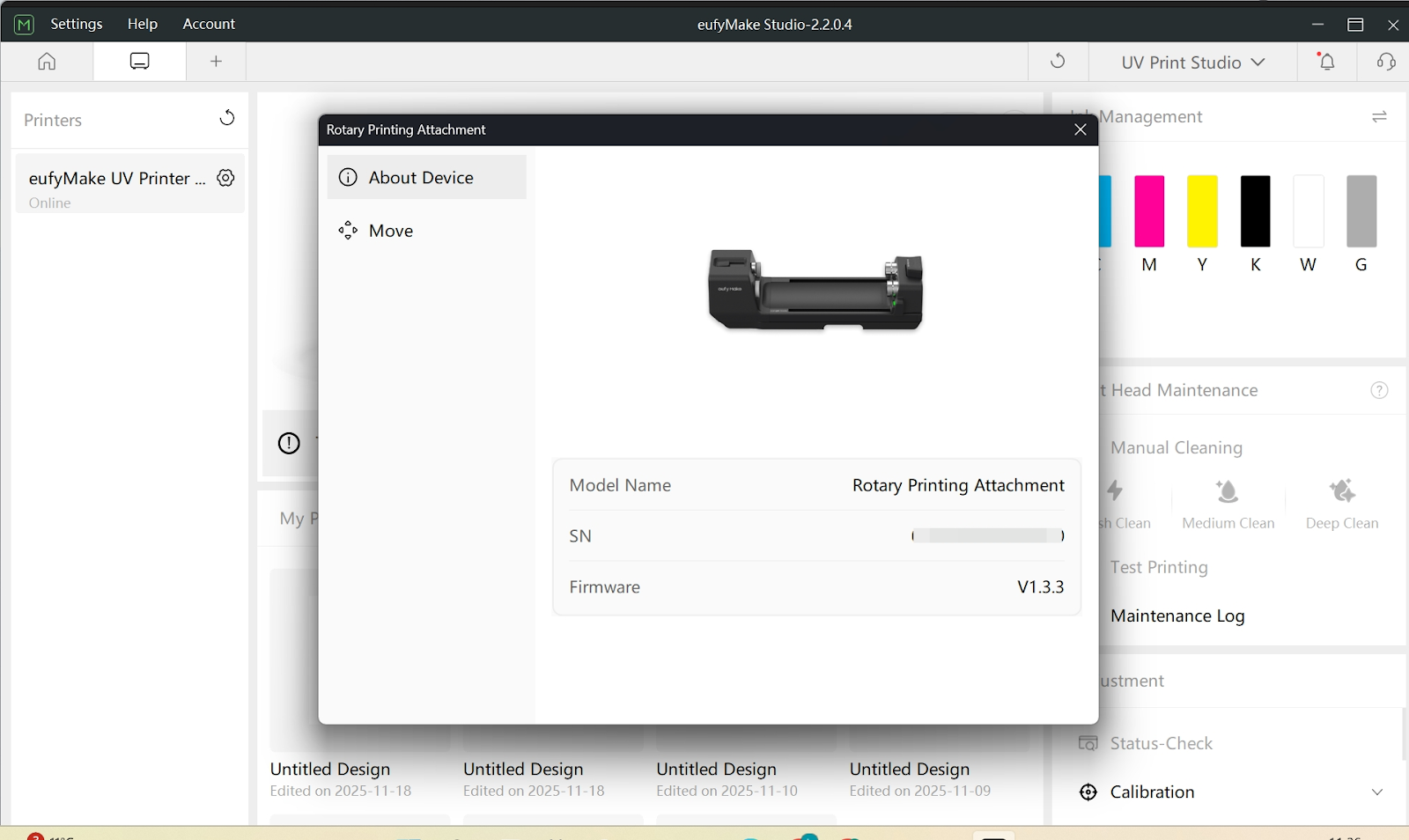
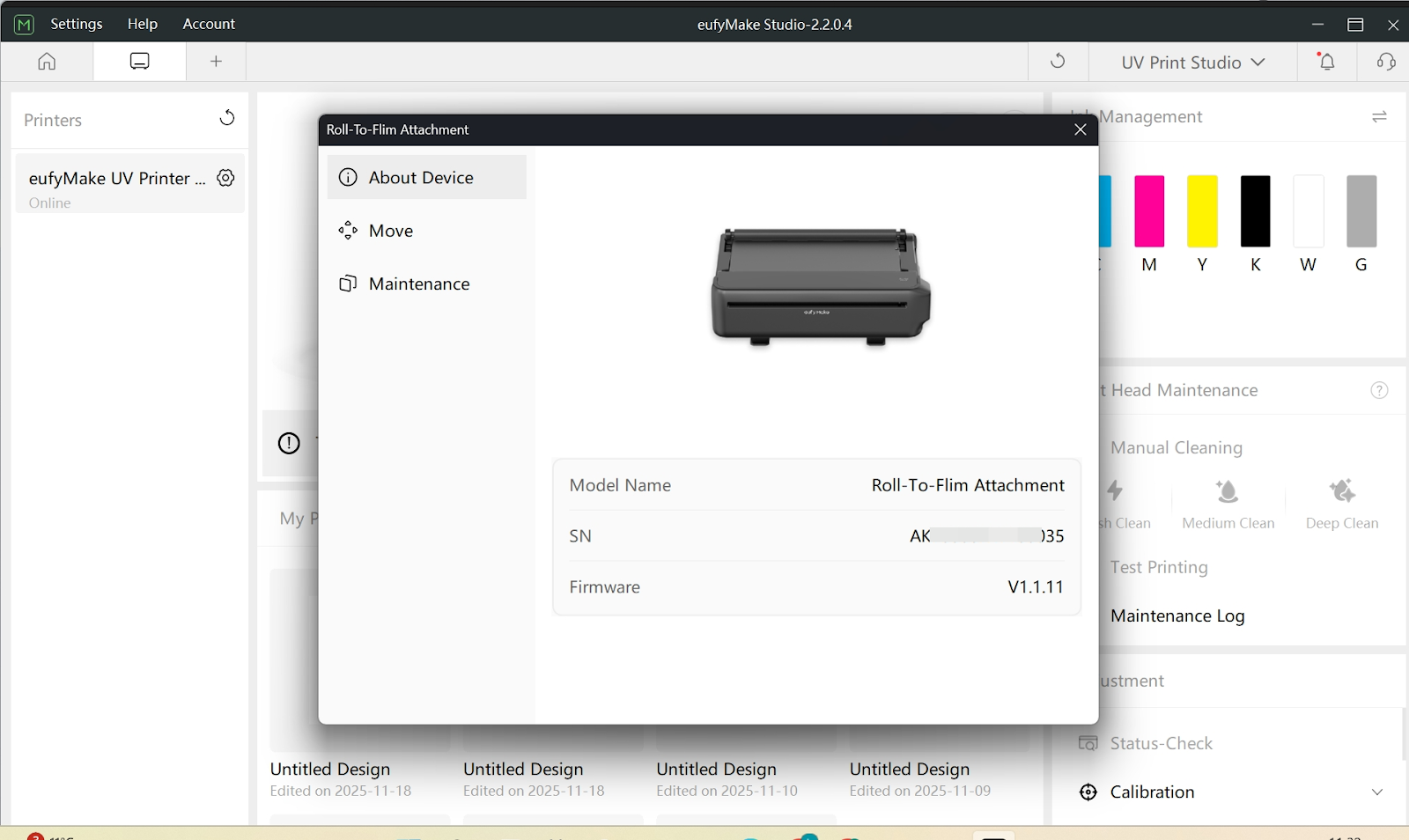
Firmware Upgrade of Standard Flatbed, Rotary Tool and Roll to Film Accessories
The firmware for the Rotary Tool and Roll to Film accessory will automatically update after installation in the printer.
No additional user action is required. You can click the printer icon in the upper-right corner to check the firmware version.