¶ Unbinding and Factory Reset
¶ Unbinding and Factory Reset
Video:
¶ Problem Description
When changing device users, reselling the device, or troubleshooting certain software issues, you may need to unbind the device from your current account and restore it to its factory default state.
¶ Applicable Products
eufyMake E1
¶ Solution
Choose to unbind the device from the software only, or restore the device to factory settings while unbinding. Follow the steps below:
¶ Method 1: Via Software (Recommended)
This method is straightforward and offers two different unbinding options.
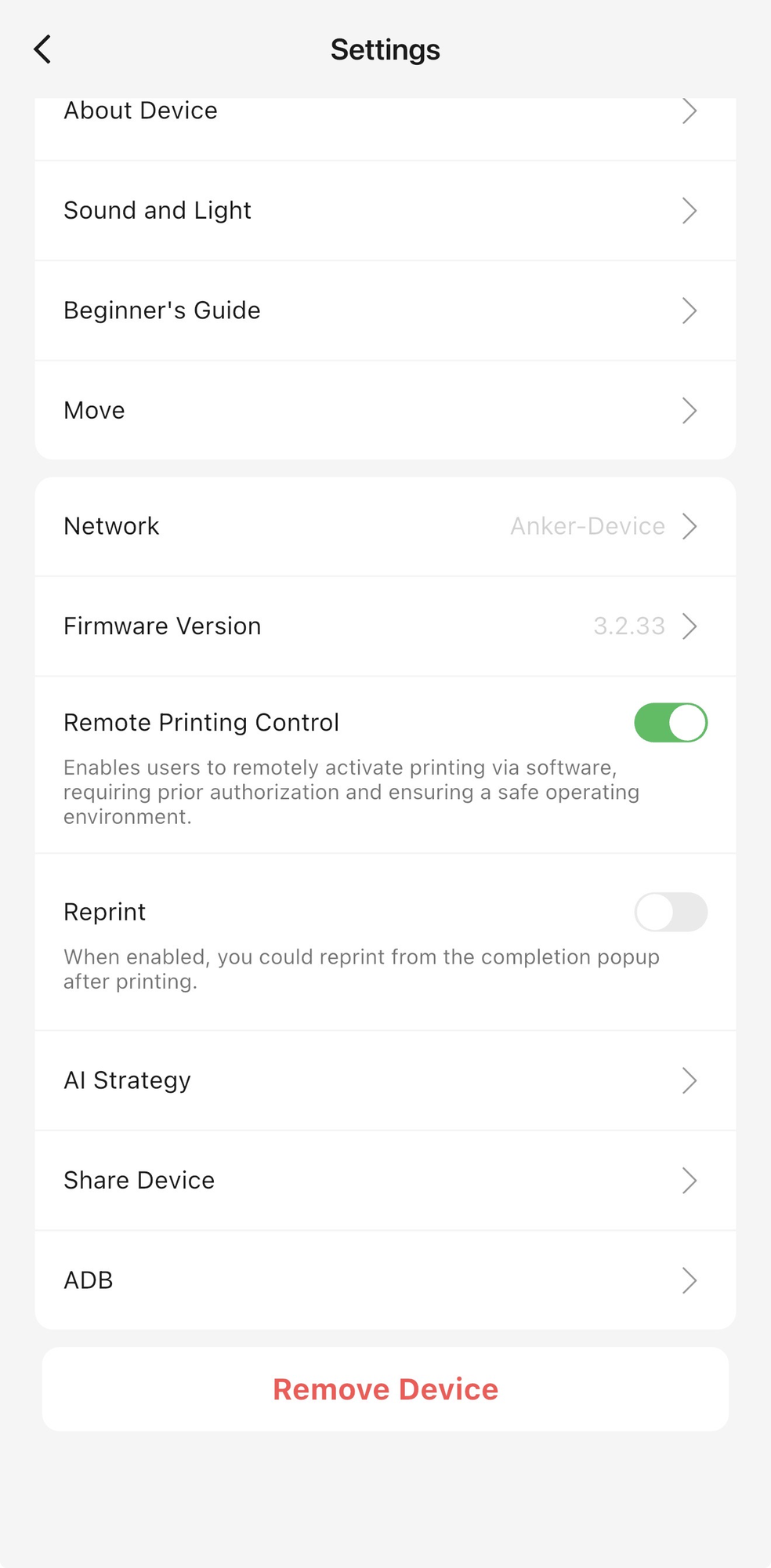
- Open the eufyMake software (e.g., UV Print Studio) and go to the device management screen.
- In device settings, find and tap the "Remove Device" option.
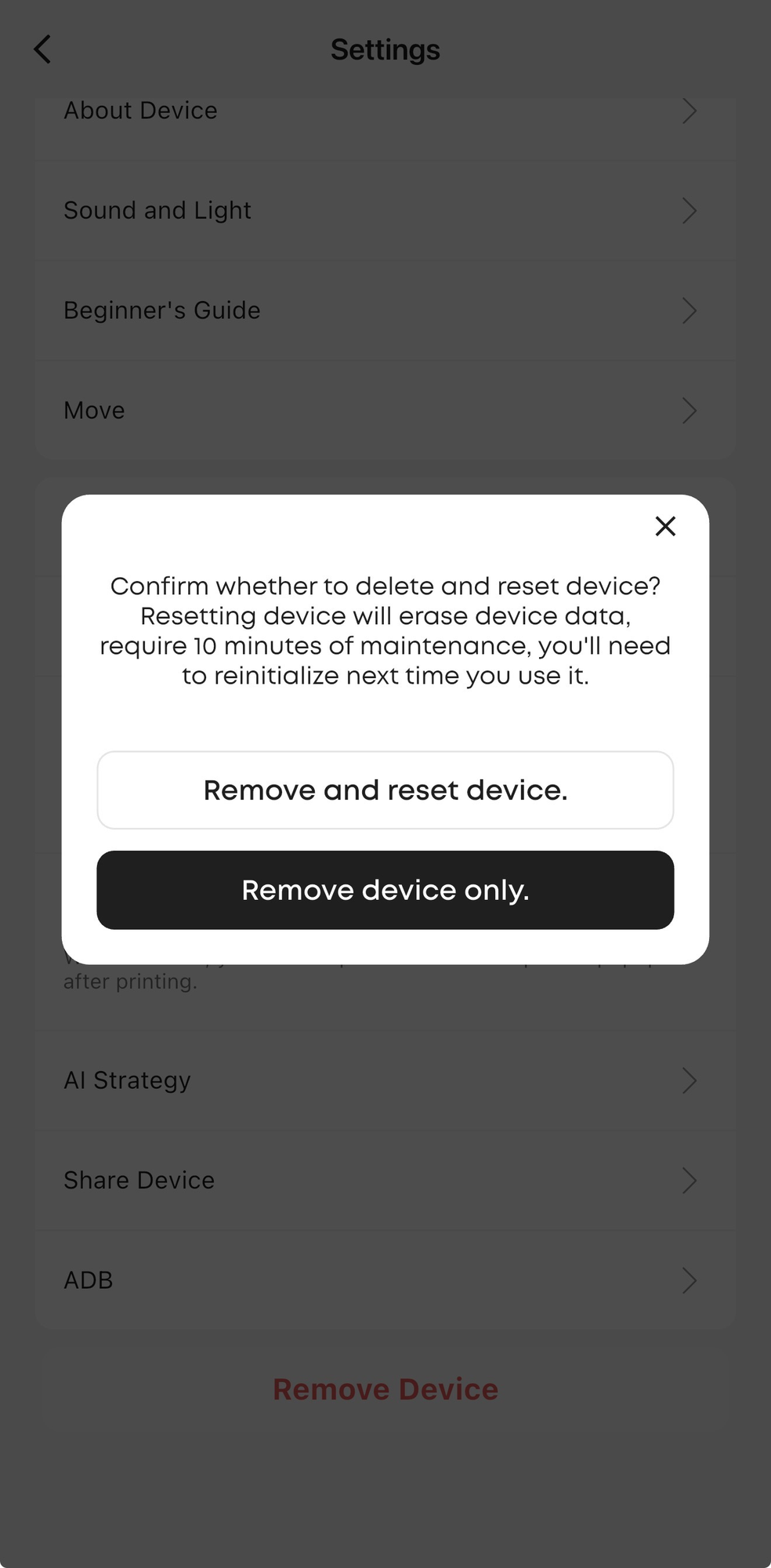
- A confirmation window will appear with two options. Choose carefully based on your needs:
- Option 1: Remove Device
- What it does: Removes the device from your currently logged-in account only. The device retains its existing data and network configuration without being reset.
- When to use: You no longer want to manage this device from this computer/account, but the device may still be used by others, or you plan to re-bind it later.
- Option 2: Remove and Reset Device
- What it does: Removes the device from your account and simultaneously restores the device to factory settings, erasing all data.
- When to use: You are transferring the device to someone else, resolving complex device issues, or want to perform a completely fresh setup.
- NOTE: After selecting this option, the device will first run a cleaning and moisturizing cycle. Once complete, it will automatically clear all user data and restart. This process takes approximately 10 minutes.
¶ Method 2: Via Device Hardware (Force Factory Reset)
Use this method when the software cannot connect to the device or normal software operations are unavailable.
- Locate the Power Button and the Start/Stop Button on the device.
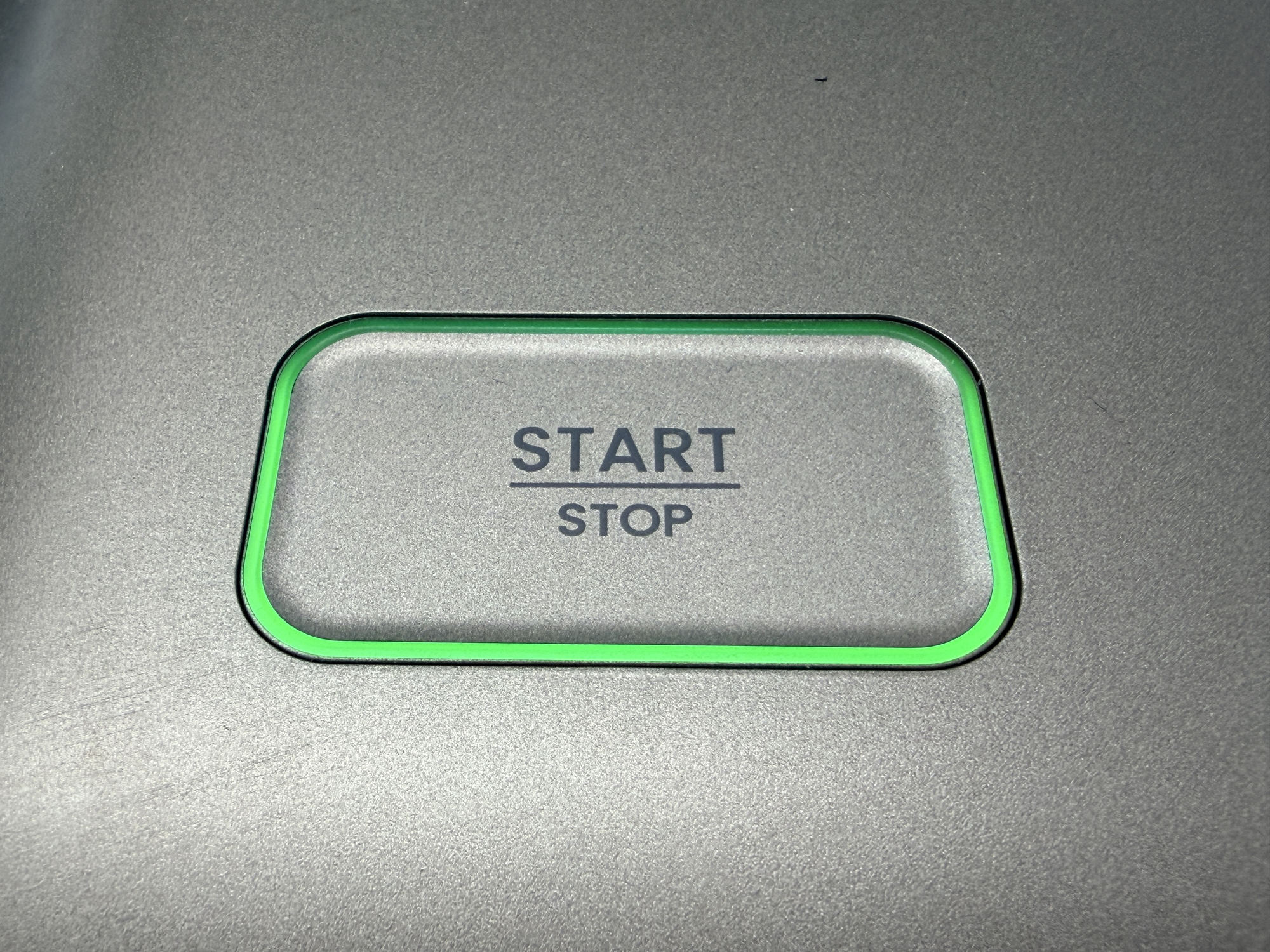
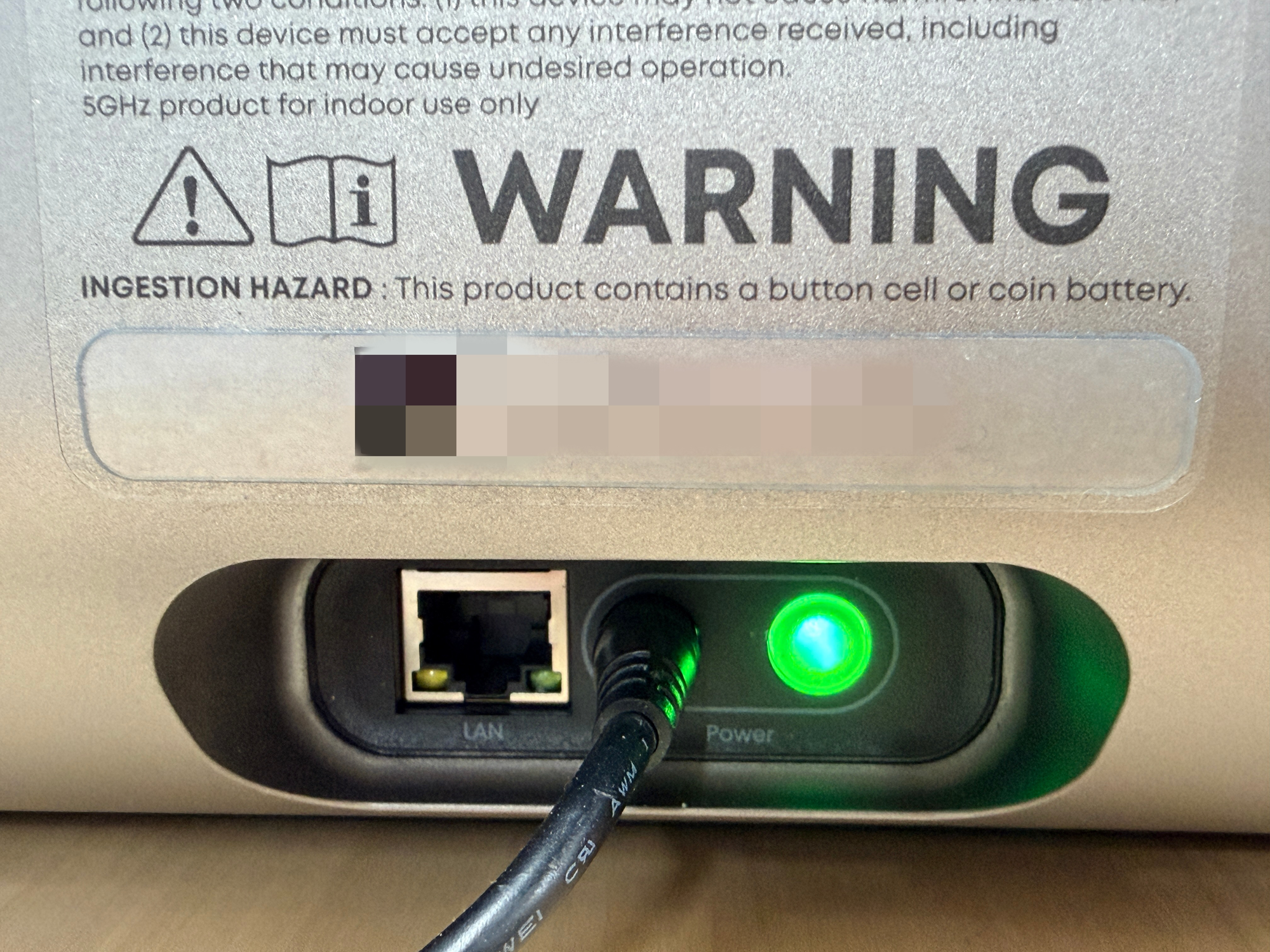
- Press the Power Button, then immediately press and hold the Start/Stop Button — keep both buttons held for more than 5 seconds.
- Once the command is received, the device will first run a cleaning and moisturizing cycle. After completion, it will automatically clear all user data and restart. This process takes approximately 10 minutes.
- Once the restart is complete, the device is restored to its factory state.
¶ ⚠️ Device Status After Factory Reset (Important)
¶ Device-Side Status:
- After restart, the device will be in blue light pairing mode, waiting to be re-bound.
- Factory reset is an independent self-cleaning action on the device. The device has been unbound, and the binding relationship with backend services has been disconnected.
¶ Client-Side Status:
- The client (App) may still show the device's binding record, with the device displayed as offline.
- This is a display artifact caused by the client's local cache. The device is already unbound from the backend, and this does not affect re-binding.
¶ Regarding the Offline Display:
- The residual device on the client shows as offline because the device has been factory reset and is no longer connected to its previous network.
- Once the device reconnects to the network and completes network configuration and binding, it will return to normal online status.
¶ Solution:
- Method 1 (Recommended): Re-bind directly via the App — ignore the residual device record on the client. The device is in blue light pairing mode and can be directly discovered and re-bound by the App.
- Method 2: Select "Remove Device" in the App first, then re-bind — if you wish to clear the residual record, first select "Remove Device" in the App's device list to clean it up, then re-bind normally.
¶ Notes
- Data Backup: Factory reset permanently deletes all user data stored on the device, including print jobs and network configuration information. Before proceeding, please ensure there is no data you need to keep.
- Re-initialization: After performing a factory reset, the device will behave like a brand-new machine. You will need to complete network configuration, binding, and initial setup (including ink injection) again.