¶ Overview
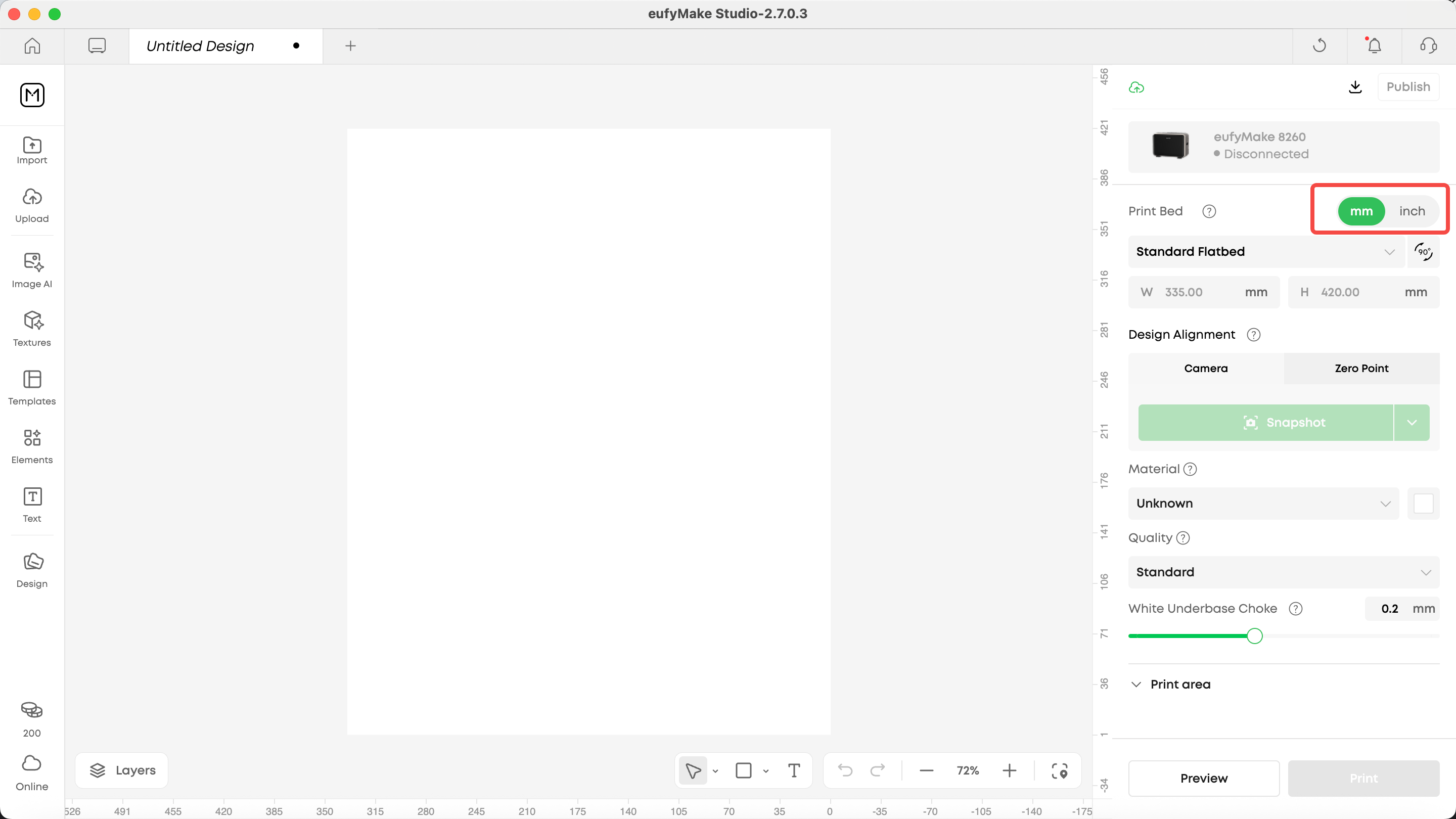
In this update, we improved the experience of switching dimension units by introducing a more intuitive toggle and adjusting which parameters are affected by the unit switch. This makes unit display more consistent when editing, publishing, and opening projects, reducing confusion and the effort caused by mismatched units.
¶ 1. How to switch units
A mm/inch toggle is now available near the Platform/Print Bed settings area in the editor.
Click to switch between mm and inch.
Note: The previous entry (top-left icon → Settings) has been removed.
¶ 2. What changes after switching units?
After switching, key dimension/position/length information in the editor will follow your selected unit, including:
¶ 2.1 Platform (Platform / Print Bed)
Platform size: Width / Height
¶ 2.2 Image
Image size: Width / Height (including linked display when aspect ratio is locked)
Image position: X / Y (or Left / Top, depending on UI naming)
¶ 2.3 Roll-to-Film
In Roll-to-Film workflows, relevant size inputs/displays also switch with mm/inch, including:
Cutting Interval
Roll length-related inputs such as Remaining Length
Length-related fields inside the Length Calculator dialog
¶ 3. Which values do NOT follow the unit switch (mm only)?
The following values remain displayed in mm only, regardless of unit switching:
White Underbase Choke
Stack height/thickness (Flat / Pattern Texture / Relief Texture: stays in mm on the parameter page, preview page, and global settings)
Outline & Shape tool stroke width
¶ 4. Publishing & opening projects
When publishing: the project uses the unit currently selected in your editor for dimension display.
When opening a project: if the project’s unit differs from your current editor unit, the system automatically adapts the display to your current unit—no manual conversion needed.